With Jotform’s Appointment field, you can let users manage their bookings directly from your form. Previously, users could only reschedule appointments through an edit link that could be difficult to find. With the new Appointment Management feature, users can now reschedule or cancel their appointments in one place.
Enabling the Let Users Edit Appointment feature
- Open your form in Form Builder, and then click on the Appointment field.

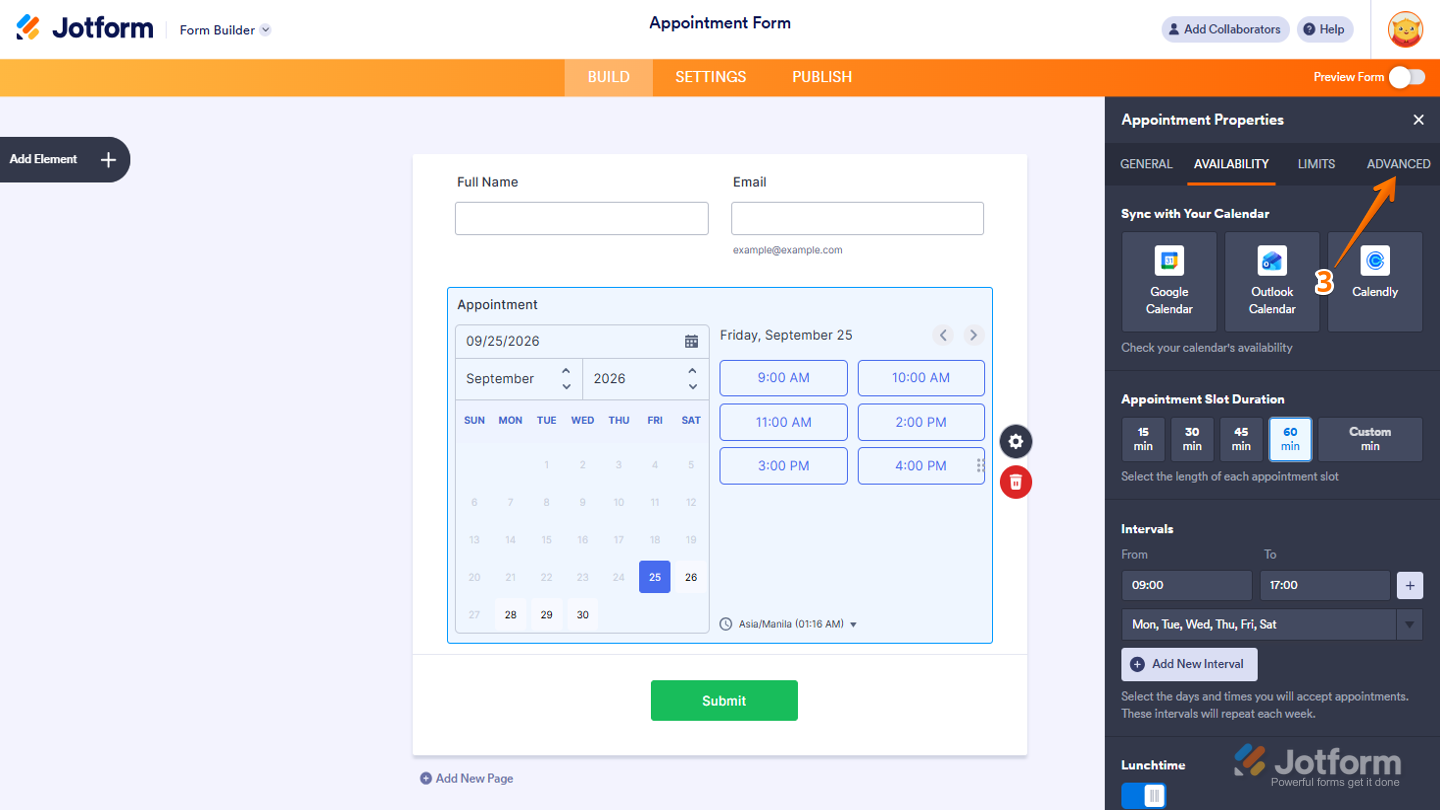
- Then, click on the Gear icon on the right side of the field.

- Next, in the Appointment Properties menu that opens on the right side of the page, click on the Advanced tab.
- Now, toggle on Let Users Edit Appointment.
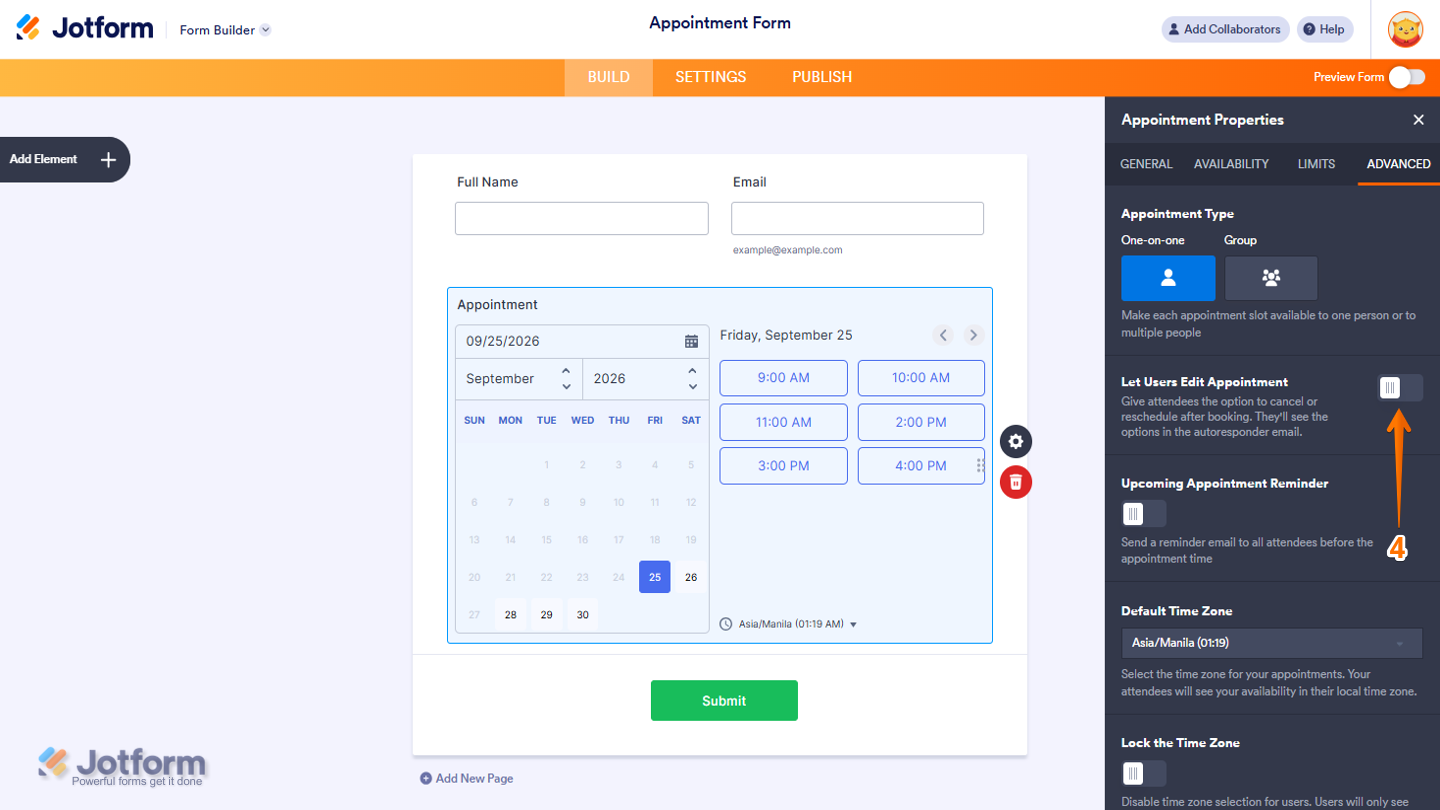
That’s it. You’ve now successfully enabled the Let Users Edit Appointment feature in the Appointment field. After the user’s submitted the form, they’ll see a Manage Appointment link in their Autoresponder Email where they can easily cancel or reschedule their appointments.
Note
- When a user makes any changes to their appointment, you’ll get a Notification Email about it.
Rescheduling or Canceling Your Appointment
If you need to reschedule or cancel an appointment, you can use the Management Appointment Link in the Autoresponder Email. Let me show you how:
- In the Autoresponder Email, click on Manage Appointment.

- Next, in the new browser tab, click on Reschedule Appointment to change the booking or Cancel Appointment to cancel it.

- If you selected Reschedule Appointment, you’ll be redirected to the form to select a new date or time slot.
- Once done, click on Submit at the bottom of the page.

- If you selected Cancel Appointment, in the Confirmation window that opens, click on Cancel Appointment.

Viewing and Updating Appointments
The Manage Appointment feature is available in Jotform Inbox and Tables, where you can view and update bookings. Here’s one way to do it:
- In Jotform Inbox, select the submission you want to view or update the appointment for.
- Then, in the Appointment field, click on the Calendar icon to reschedule or cancel the appointment.

And you can also do it this way:
- While in Jotform Inbox, select the submission you want to view or update the appointment for.
- Next, hover your mouse over the Appointment field, and then click on the Three Dots icon.
- In the Dropdown menu that opens, click on Manage Appointment.

To view or update bookings in Jotform Tables, here’s what to do:
- In Jotform Tables, hover your mouse over the submission you want to update, and then click on View.

- Now, in the menu that opens on the right side of the page, click on the Calendar icon to reschedule or cancel the appointment.

You can view cancelled appointments in Jotform Inbox and Tables using the Filter feature to check the cancellation status. Check out the screenshot below to see how it looks in Jotform Tables:

Here’s what it’ll look like after applying the filter:

Notes
- Looking for more info? Check out these helpful guides on How to Filter Entries in Jotform Tables and How to Search and Filter Submissions in Jotform Inbox for more details.
- If your Appointment field uses two-way sync, this method is only supported with Google Calendar and Outlook Calendar. For Calendly, users need to cancel or reschedule their appointment through the email they get from Calendly.

Send Comment:
6 Comments:
February 2, 2026
I do not have an option to add the Form Field "Edit Link" in the email content window. I only see "Submission ID" and "Form Title." (The "Edit Link" field is not already part of the email template.)
January 9, 2026
How do we as an admin cancel any appointments?
May 17, 2025
Hi, just trying to follow the above process so I can allow the cancellation of appointments, however when I get to step 7. DO, unrequire isn't an option?
September 24, 2024
I have been testing my meeting confirmation form on one date: Sept. 27, 2024 at 2:00 p.m. Chicago time and now it will not allow me to set an actual appointment on that date and time. Please help
January 15, 2024
we need to have multi step form we will have a lot of fields . putting all fields in 1 page will not be good in terms of user experience. this is a reply from my above comment. It shwos 404 when im checking the answers.
January 15, 2024
Hi. I have multi step form. I only want the user to show the appointment page. not the whole form. So basically only edit their appointment, not other fields like name etc. I only want the user to only view the appointment details, no other details