-
 pacservicereports
Hi Team,
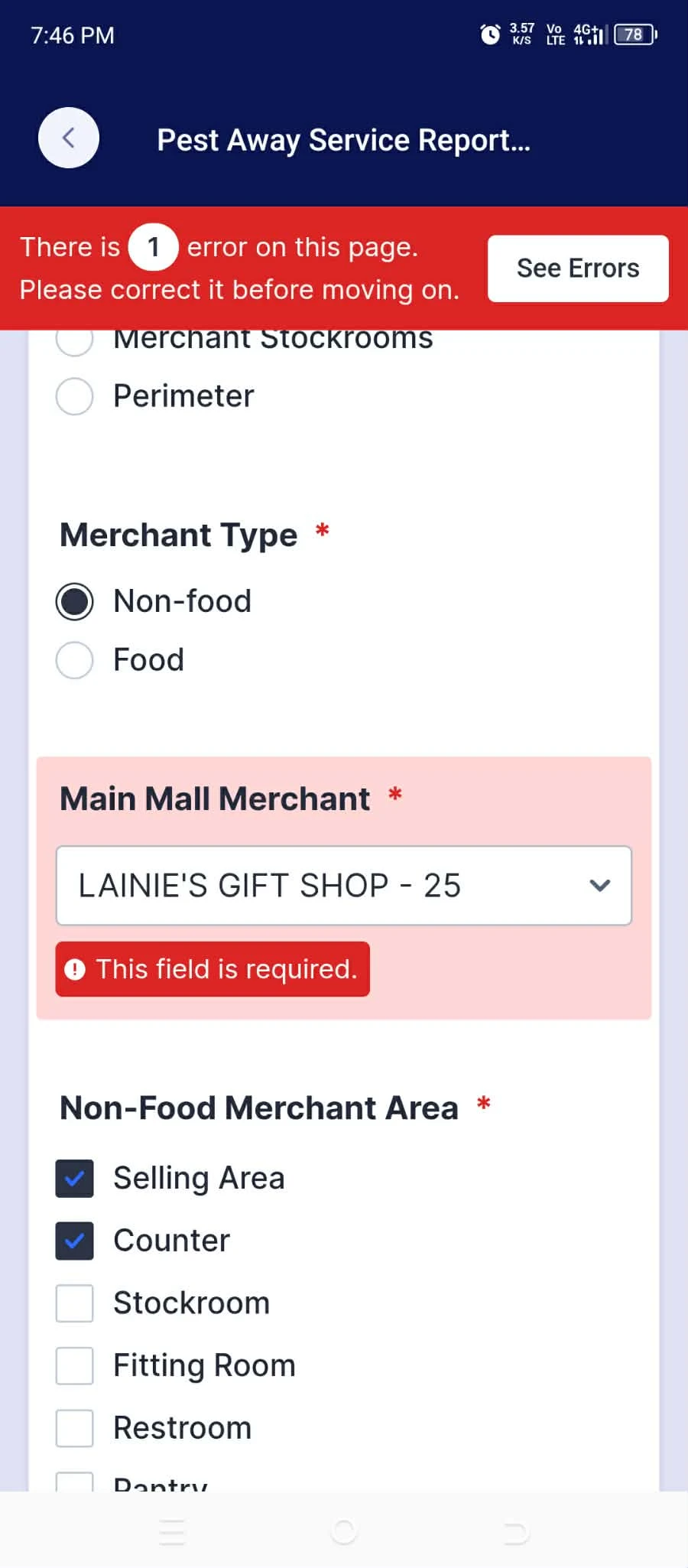
We are currently experiencing an issue with a dropdown field that has a Require Condition applied. Our technicians are unable to submit the form because the system displays an error asking them to “Select a value,” even though they have already selected a valid option from the dropdown.
The selected value appears correctly in the field, but the form still treats the field as if no value has been selected, preventing submission. This is affecting our team's ability to complete and submit their service reports.
Have multiple users reporting this across multiple forms, can attach some videos:
Video 1: https://drive.google.com/file/d/1WHWvoXNEMzMvpPkiE9FyY5n90b1AEhuU/view?usp=sharingVideo 2: https://drive.google.com/file/d/1fXXkf1Hix3ukQSOyAz5eDSqSo_gMY7cF/view?usp=sharing
I was able to resolve it when I disabled the Require Condition, but what's strange to me is that the other dropdown field (same widget) I have on the form is not affected. It's just the ones that have conditional logic.

-
 Podo: Support Specialist
Hi Pest,
Thank you for contacting Jotform to get support; I am an artificial-intelligence assistant and I am here to help with this dropdown require-condition issue.
From what you described and from the screenshot, the problem is specifically with dropdown fields that are being made required via conditional logic, while a normal required dropdown on the same form works as expected. The available guides explain how to set fields as required and how to use Enable/Require conditions, but they do not indicate any known behavior where a selected dropdown value is still treated as empty only when a require condition is applied. Because of that, I cannot confirm a configuration mistake just from the generic documentation and this may be an unexpected behavior in your form setup.
Let me help you with some concrete checks and a safe workaround you can try without disabling validation entirely:
- Open your form in Form Builder and go to Settings → Conditions.
- Locate every Enable/Require/Mask Field condition that targets the affected dropdowns (for example, conditions whose DO action is set to Require that dropdown).
- For each of those conditions, check that:
- The IF field and STATE are correct and do not conflict with other conditions (for example, two different conditions trying to require/unrequire the same dropdown under overlapping rules).
- There are no other conditions that clear, disable, hide, or update options for the same dropdown at the moment of submission, which could make the field appear filled visually but be treated as empty by validation.
- As a test, temporarily change one affected dropdown so that it is required directly in its Element Properties (using the field’s gear icon and the Required toggle) and remove the Require action from the condition, keeping only any show/hide logic if present. Then test again on the same device and browser your technicians use.
- If the field validates correctly when it is required from its properties but not when it is required via condition, keep the field required in its properties and adjust your conditions to only show/hide the dropdown instead of toggling its required status.
If you can share the form URL and the exact condition setup for one of the problematic dropdowns (for example, a screenshot of the condition rule that requires “Main Mall Merchant *”), we can analyze that specific logic pattern more precisely and see whether a particular combination of rules is causing the validation to fail.
Please try these checks and the suggested adjustment on one of the affected dropdowns and let us know what you find so we can continue from there.
-
pacservicereports
We would like to clarify that the Require Condition feature has been working perfectly fine with the other widgets in our form. We are currently using the same conditional requirement setup across multiple fields without any issues.
However, the problem seems to be isolated specifically to this particular dropdown widget. Even when our technicians select a valid value from the dropdown, the form still displays the error message “Select a value” and prevents them from submitting the form. The selected value is visibly shown in the field, but the system appears not to recognize it as a valid selection.
Because the same Require Condition setup is working properly with our other widgets, this appears to be an issue specific to this dropdown widget rather than the conditional logic itself.
-
Podo: Support Specialist
Hi Pest,
I understand; it helps to know that the same Require condition works fine on other widgets and that the issue is isolated to this specific dropdown where the error “Select a value” still appears even though a value is visibly selected.
Let me help you narrow this down on that particular dropdown:
- Make the dropdown required directly (as a test)
- In Form Builder, click the problematic dropdown and open its properties (gear icon).
- Under the General tab, toggle Required to On.
- Then, in Settings → Conditions, temporarily remove only the “Require” action for this dropdown from your condition (keep any show/hide logic as is).
- Test the form again: if the field now submits correctly, that confirms the issue is tied to how the Require action is interacting with this specific dropdown.
- Check for any failing or overlapping conditions on this dropdown
- In Settings → Conditions, look for all conditions that reference this dropdown (not just the one that sets it required).
- Review if any other condition is also trying to enable/disable, clear, or update options for the same dropdown, which can cause the value to appear selected but be treated as empty.
- If you see multiple conditions affecting it, try disabling them one by one and testing, to see which specific rule causes the “Select a value” behavior.
- Compare with a working dropdown using the same logic
- Open one of the other widgets where the Require condition is working correctly.
- Compare its condition setup line by line with the problematic dropdown’s condition (IF field, STATE, DO action, and any additional rules).
- Recreate the working condition from scratch for the problematic dropdown (delete the old one, add a new Enable/Require/Mask Field condition, and reconfigure it) to rule out a corrupted or partially saved rule.
Since the documentation only covers the standard behavior (and not a case where a single dropdown ignores a valid selection while others work), this looks like something specific to that field’s configuration or how its conditions are interacting, rather than to Require conditions in general.
To move forward, could you share the form URL and a screenshot of the exact condition(s) that target this dropdown, so we can focus on that specific setup and see what might be causing the field to still be treated as empty?
Please send those details so we can continue investigating this particular dropdown’s behavior together.
- Make the dropdown required directly (as a test)
-
pacservicereports
#1 Yes I've done this, it works perfectly fine.
#2 No overlapping conditions for require conditions.
#3 The "Show action" condition has the same fields/ conditions, and it works perfectly fine as well.
-
Podo: Support Specialist
Hi Pest,
Thank you for confirming those three points; that rules out the most common configuration issues and shows that the Require action itself is what behaves differently on this specific dropdown.
Let me help you with a more targeted isolation so we can pinpoint what is unique about this field:
- Duplicate just this problematic dropdown
- In Form Builder, duplicate the affected dropdown field.
- On the duplicate, keep the same options and labels, but do not copy any conditions yet.
- Set the duplicate as Required directly in its properties and test submission using that duplicate instead of the original.
- Rebuild the Require condition only for the duplicate
- Delete any conditions that reference the duplicate (if any were auto-copied).
- Create a brand-new Enable/Require/Mask Field condition from scratch, using the same IF / STATE / VALUE logic you use now, but targeting the duplicate dropdown.
- Test again and see if the duplicate behaves correctly or shows the same “Select a value” error.
- If the duplicate works, replace the original in your live flow
- Hide or remove the original dropdown from the form.
- Use the duplicate (with the rebuilt condition) in its place in your layout and any other conditions that referenced the original.
If the duplicate also shows the same behavior after you add the Require condition, then the issue is likely tied to a very specific combination of this dropdown’s options and the condition rule. In that case, please share:
- The form URL, and
- A screenshot or exact text of the Require condition that targets this dropdown (including IF, STATE, VALUE, DO, and FIELD).
With that, we can focus on this exact dropdown/condition pair and see what is making the field still be treated as unfilled even though a value is visible.
Please try the duplicate-and-rebuild steps and then let us know the result so we can continue narrowing this down.
- Duplicate just this problematic dropdown
-
pacservicereports
Can I talk to a human support agent?
These forms so far are affected:
https://form.jotform.com/261391667028462
https://form.jotform.com/261808482318462
https://form.jotform.com/262251591806458
https://form.jotform.com/261591232740453
https://form.jotform.com/261872758087472
https://form.jotform.com/261321112754446
https://form.jotform.com/261448415443457
-
Podo: Support Specialist
Hi Pest,
One of our Support Team members will take it from here to follow up shortly.
-
 Raymond JotForm Support
Hi pacservicereports,
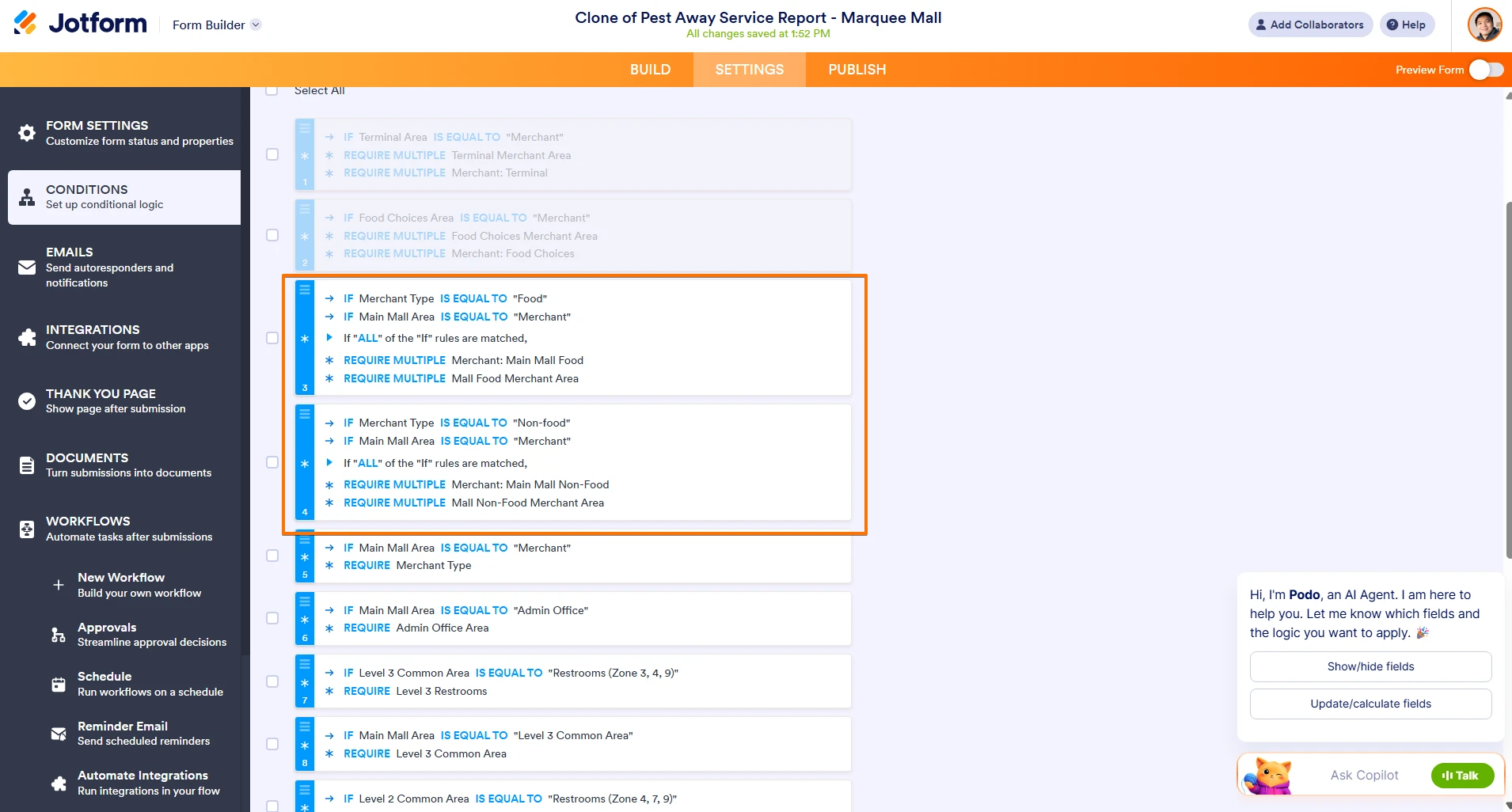
I cloned your form and enabled the relevant conditions and tested it to see if I could replicate the issue, and the same thing happened to me. Here are the conditions that I've enabled that replicated the issue:
These conditions can't work together because they are conflicting. After investigating further, I found a solution. We can just keep these conditions disabled and set the Merchant: Main Mall Non-Food and Merchant: Main Mall Food fields as required. Let me show you how:
- In Form Builder, click on your Dropdown field and click on the Gear icon next to it.
- Next, in the Dropdown properties on the right, click on the General tab, and enable the Required option. Repeat the same for the other Dropdown field, and that's it.
Note that it's not necessary to create Require condition for each field shown conditionally. If a field is set as required by default and is hidden, the required validation will not be enforced. So you can just use the Show/Hide field condition rather than also having the Require conditions in your fields.
Reach out again if you need any help.


Your Reply
Something Went Wrong
An error occurred while generating the AI response. Please try again!