

If you’re using Google Forms to collect data via forms, surveys, and quizzes, you may want to know when a response is submitted. With Google Forms, you can set up automatic notifications, and every time a respondent submits your form, you’ll be notified by email. Setting this up is easy.
In this article, we’ll show you the steps to set up Google Forms to send an email when submitted forms roll in. Plus, we’ll show you how to send emails to your form respondents and how to use Google Apps Script to automate more complex email workflows.
And if you’re looking for a form builder that can do more than standard email automations, we’ll introduce you to Jotform. It sends form submission alerts to channels your team loves — like WhatsApp, Slack, and Microsoft Teams — in addition to email.

How to get basic email notifications for yourself
To get email notifications for Google Forms responses, use the form builder’s native features. But keep in mind this will send new response alerts to the form editor who sets up the automation (presumably you), but it does not notify anyone else, such as form respondents or other form editors.
Follow these instructions to get Google Forms email alerts when a respondent submits a form:
- Open the relevant Google Form.
- Click Responses.

- Click the three vertical dots (More options for responses).

- Click Get email notifications for new responses.

Google Forms will now send you an email after every form submission.
Pro Tip
Wondering whether you’re making the most of Google Forms? This form builder has features that may not be obvious from the get-go. Check out our detailed guide, How to Use Google Forms, to learn more about form customization, complex question types, and more.
How to send automatic emails to respondents
From a respondent perspective, it’s often helpful to get confirmation of form submission and have a record of your responses. As the form creator, you can enable this in Google Forms with built-in tools.
Here’s how to adjust the settings to send a confirmation email from Google Forms to respondents, along with the Google Forms responses they submitted:
- Open the relevant Google Form.
- Click Settings.

- Scroll down to Responses. For Collect email addresses, select Verified from the dropdown menu. This lets Google Forms collect email addresses for respondents so it knows where to send the email confirmation. If you don’t select this setting to collect email addresses first, you will not have the option to send responders a copy of their responses.
For Send responders a copy of their response, select Always.

Now, Google Forms will send respondents a copy of their form once they submit it. Note that your form respondents must sign in to Google in order to fill out the form.
Pro Tip
- Google Forms can send respondents basic confirmation messages and response copies. However, if you want to do something more complex, such as send a Google Forms email notification to multiple recipients at a time or send customized follow-ups, you will need to use a Google Forms add-on.
- Found in the Google Workspace Marketplace, Google Forms add-ons are third-party tools offering additional functionality. For example, the Email Notifications add-on sends messages routed to different people using custom rules based on their answers in the form.
- Google Forms add-ons can also function beyond emails. The AI Form Builder add-on, for example, instantly creates Google Forms using artificial intelligence and can import form questions from files in Google Drive.
- Note that some Google Forms add-ons are free, while others have freemium or paid plans. They are simpler than writing custom code but add another tool to your form workflow.
Use Google Apps Script for custom emails
Google Form’s built-in functionality is useful for sending simple emails to form editors and respondents, while add-ons provide new functionality to complete more complex workflows. However, if you’re looking to have full control over form-related emails — and you want dynamic routing, personalized content, answer-based conditions, and more — you need to use custom code.
Google Apps Script is a cloud-based rapid application development platform that helps you set up email-related workflows for Google Forms, such as a Google Forms autoresponder to those providing a specific answer within a form.
Note that using Google Apps Script requires working with code, so you do need to have advanced technical knowledge to take this route. While you can use AI tools like ChatGPT or Claude to write custom code, you need to understand how code works to ensure you’re setting up the automation correctly.
Here’s a brief overview of how to use Google Apps Script for custom emails for Google Forms in a typical workflow.
- Open the relevant Google Form.
- Click the vertical three dots icon (More) at the top. Select Apps Script.

- Write code for the custom email workflow you require in Apps Script. Ensure you use Apps Script’s email functionality to specify recipient, subject, and message.
- Create a form-submit trigger in Apps Script so the script knows to run automatically whenever someone submits your Google Form.
- Authorize and test the script.
Google Apps Script will automatically send an email notification based on the custom code you’ve written. Keep in mind that using custom code tends to require ongoing maintenance, so you’ll need to periodically test the automation and troubleshoot as needed.
Even easier form submission automations
If you want to boost your forms’ functionality further, you can use a tool like Zapier. Zapier lets you connect just about any software tool on the internet to just about any other tool, including Google Forms and Google Sheets. Choose the platforms you want to connect and specify the triggers and actions, such as sending Google Forms SMS notifications through a connected SMS service when a new response arrives.
Zapier is an excellent tool for connecting software, but it can be tricky to set up. It’s also a third-party app requiring a paid plan if you want to set up more than five automations. If you prefer Google Forms because it’s free, then Zapier may not be your best choice.
There’s another form tool that is free and gives you a lot of functionality right out of the box: Jotform, a popular Google Forms alternative. You can perform each of the three scenarios mentioned in the previous section with Jotform — no extra software needed.
Jotform has a widget that lets you add an appointment booking system to a form. You can send an email notification to yourself or to multiple recipients when someone completes a form (though you’ll need to have a paid plan to send a notification to more than one recipient). And you can smoothly connect to many other tools, like Google Sheets, with Jotform’s 150-plus integrations.
In fact, you don’t even need an integration to add your form results to a spreadsheet. Jotform Tables automatically records submissions in a spreadsheet-database that works more like Airtable than Google Sheets. You’ll be able to organize, sort, and manage your form submissions in one place. Try it for free today.
Go beyond email with Jotform Form Notifications
Email notifications are helpful, but they still depend on someone noticing an inbox message. These messages can be delayed, filtered, or missed. And in Google Forms, you get only a simple alert, so you still have to jump back into the form to review responses in full.
With Jotform Form Notifications, you can deliver real-time form submission alerts through the channels your team actually uses, including WhatsApp, SMS/Text Message, mobile push notifications, Slack, and Microsoft Teams, all managed in one unified Notifications experience. That means you can route urgent submissions to the right person instantly, and speed up follow-up.

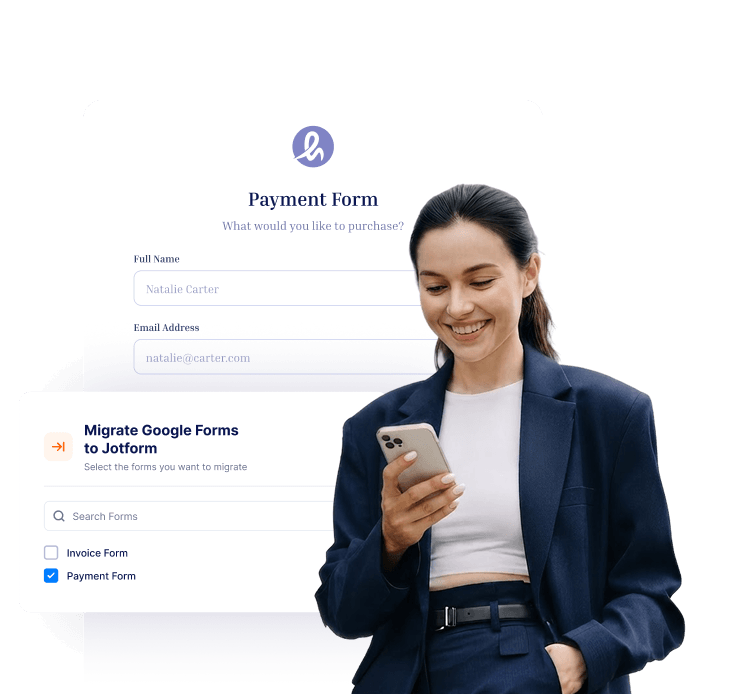
If you’ve already set up your form in Google Forms, you can still take advantage of everything Jotform offers without the headache of rebuilding your forms in Jotform. Simply migrate your Google Forms into Jotform with a couple of clicks. We move over your form questions and structure so you don’t need to do any heavy lifting.
Explore Jotform today, and see how easy it is to set up Jotform email notifications for your forms.
FAQs about Google Forms submission emails
Yes, Google Forms can automatically email the person who filled out the form. To set up this functionality, go to Responses. For Collect email addresses, select Verified from the dropdown menu. For Send responders a copy of their response, select Always. Note that Google Forms will require respondents to sign in if you have enabled this setting.
You can send submitted Google answers by email to respondents by configuring the appropriate settings under the Responses tab. You can also send submitted Google answers by email to yourself as the form editor by enabling the functionality under the Settings tab.
Google Forms doesn’t have built-in functionality to send emails to multiple recipients at the same time. However, you can use a Google Forms add-on or a custom script in Apps Script to create this functionality.
You can use Google Apps Script to send customized emails from Google Forms. This tool is ideal for complex email automations and workflows. You can also use certain Google Forms add-ons to send customized emails from Google Forms, but they don’t offer as much control as Google Apps Script.
This article is for teachers, small-business owners, event organizers, and operations teams who need to know immediately when someone submits a Google Form. They need a simple native notification setup first, then clear guidance on the limits of Google Forms when they need customized confirmations, routing, or automated follow-up emails.

























Send Comment: