

Originally created as a simple voice chat app for the gaming community, Discord has evolved into a major multimedia communication platform for all types of communities. Now, the platform boasts features like text chat, video conferencing, file-sharing, and incredible server customization.
For all of the features Discord offers, it can be difficult to use it to collect and compile feedback from the community through surveys. That’s where Google Forms comes in handy. Here’s how you can connect Google Forms to Discord in two ways, and what you can do once you’ve integrated the tools.
How to connect Google Forms with Discord
There are two ways to connect Google Forms with Discord: using Document Studio or with Google Apps Script.
Document Studio is a Google Forms add-on available in the Google Workspace Marketplace. You can use it to automatically generate a message in Discord every time a Google Form is submitted. This approach is fairly simple and doesn’t require any coding.
Google Apps Script, on the other hand, is a development platform that enables you to integrate workflows and automate tasks across Google Workspace apps. With it, you get more control over your Google Forms-Discord connection. However, it does involve working with raw code.
Option 1: Document Studio (easy but limited)
Users can easily connect Google Forms to Discord within the chatroom itself, but it does require installing an add-on. Don’t worry — it’s not as challenging as it sounds. Here’s how to do it.

- Create a Webhook in Discord. First, go to the channel where you want Google Form submissions to appear and click the Edit Channel button (the gear icon in the left menu).

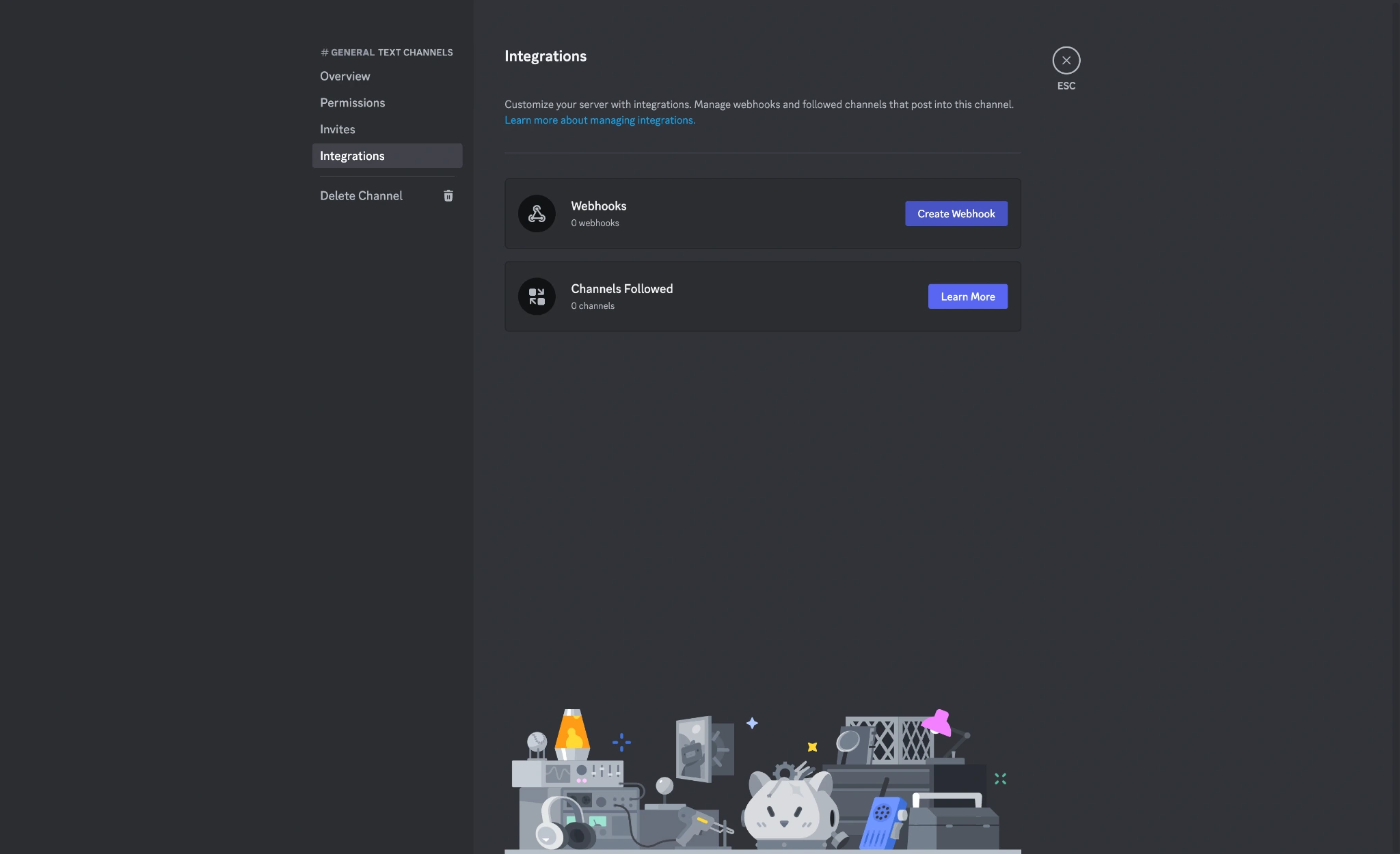
- Next, click the Integrations tab.
- Click the Create Webhook button and click New Webhook.
- Next, create your Google Form.
- Open Google Drive. Click the + New button on the left.
- Select Google Forms to create a new, blank form. Name and design the form according to your needs.
- Click the three-dot icon at the top right of the screen and select Get add-ons from the dropdown menu.

- Search for “Document Studio” in the Google Workspace Marketplace window and select the Document Studio add-on made by Digital Inspiration.

Pro Tip
Create forms seamlessly in Google Workspace with Form Builder by Jotform. Discover more now!
- Click the Install button and follow all on-screen prompts to complete the installation process.
- Return to the Google Form and click the puzzle piece icon from the top menu to open the add-ons dropdown menu. Select Document Studio from the options to launch the add-on.

- Click the Open button, then the Create New Workflow button, and give the new workflow an appropriate name in the next window, such as “Google Form to Discord.” Click the Continue button.
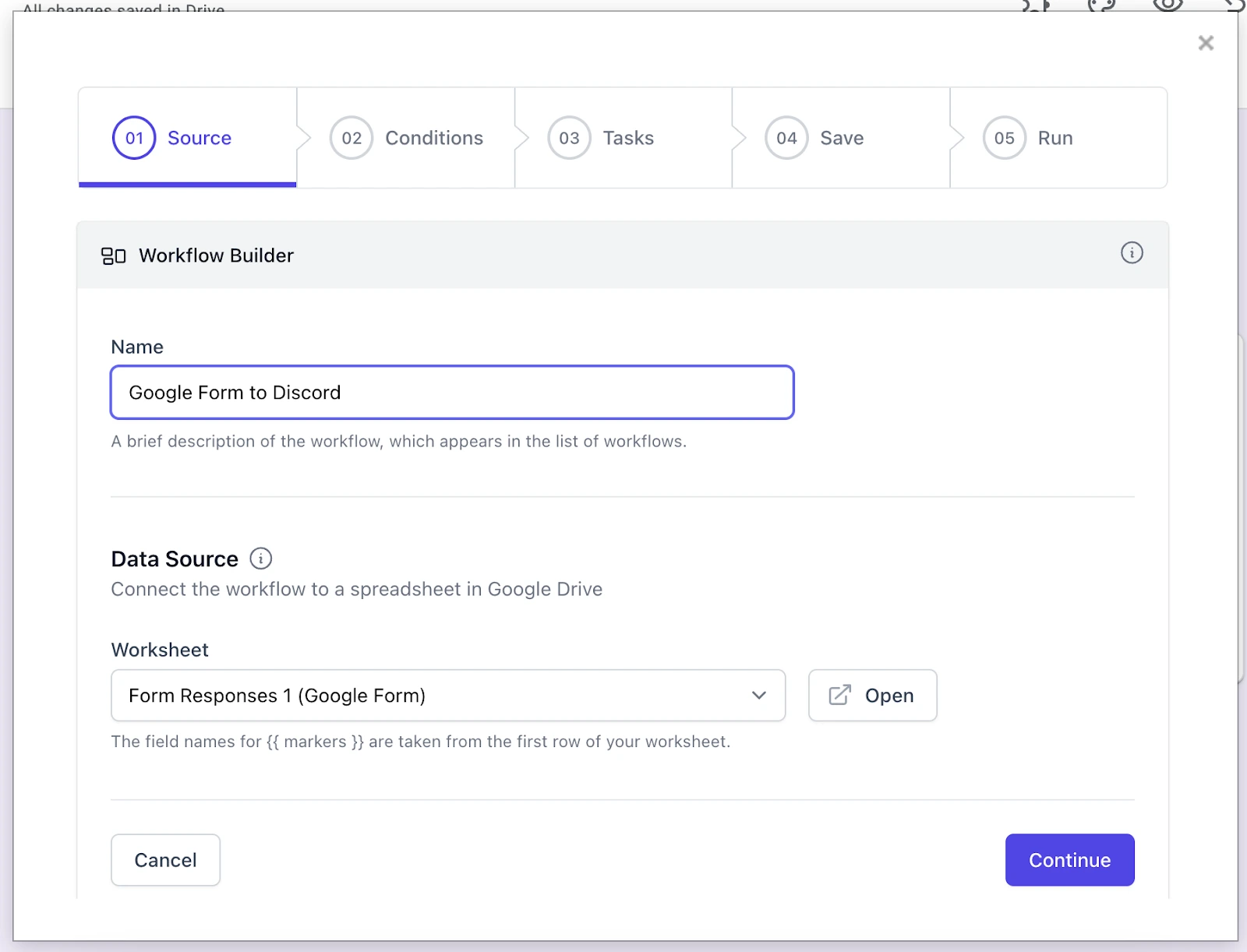
- In the Conditions window, you can specify whether you want the workflow to activate under specific conditions or for all form submissions. The choice is yours.
- Click Continue to move to the Tasks pane. Click the Discord icon from the options.
- Copy and paste your Discord Webhook URL into the appropriate box.
- Next, customize the message you’d like to appear in your Discord server each time a Google Form submission occurs. Click the icon that looks like three horizontal lines with a down arrow to access a dropdown menu with customizable fields for user name and other important info.

- Click the Done button and then the Continue button in the next window.
- In the Save pane, make sure you’ve checked the Run on Form Submit option. Click the Save button.
Your workflow is now complete, and Google Forms is connected to Discord via Document Studio.
Option 2: Google Apps Script (100 percent free but manual)
Using Google Apps Script to connect Google Forms with Discord is slightly more complicated as it involves working with raw code. Before you begin, make sure you have a prepared Google Form that you own — this is the form you’ll connect to Discord. We’ll walk you through the setup.
- Create a Webhook in Discord. Go to the channel where you want Google Form submissions to appear and click the Edit Channel button (the gear icon in the left menu).

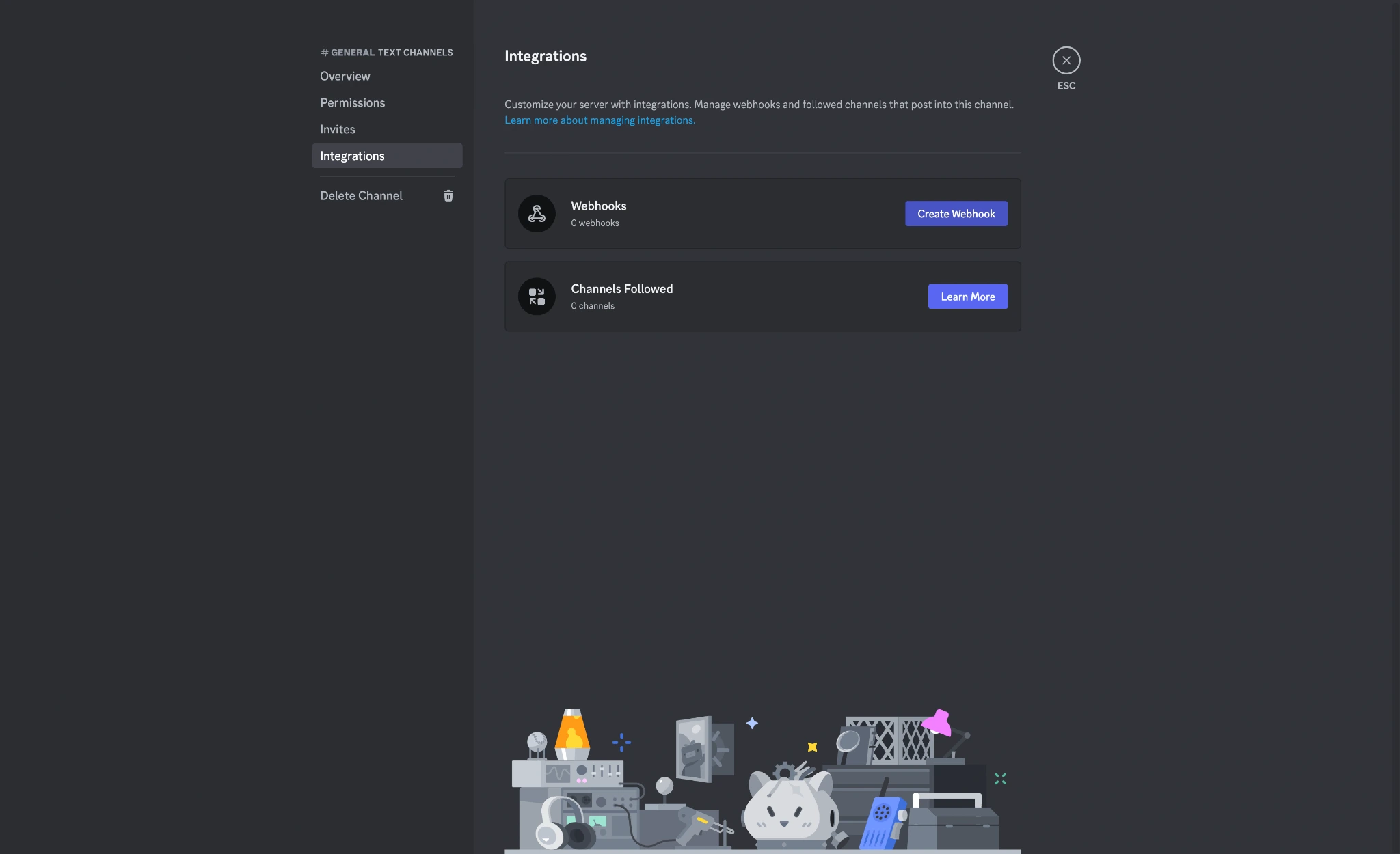
- Next, click the Integrations tab.
- Click the Create Webhook button and click New Webhook.
- Give the Webhook a name and choose which text channel it should post to. Click Copy Webhook URL.

- Open the Google Form you want to connect.
- Click the three-dot icon at the top right of the screen and select Apps Script.

- Delete all existing code in the code editor. Replace it with code that tells Google Apps Script to connect Google Forms with Discord.
You can write your own code from scratch or use an artificial intelligence tool to help generate the code. For this example, we used ChatGPT to generate the following code, which you can see here:
const DISCORD_WEBHOOK_URL = "PASTE_YOUR_DISCORD_WEBHOOK_URL_HERE";

function testDiscord() {
  const payload = {
    content: "Success! Google Apps Script is connected to Discord."
  };

  const options = {
    method: "post",
    contentType: "application/json",
    payload: JSON.stringify(payload),
    muteHttpExceptions: true
  };

  const response = UrlFetchApp.fetch(DISCORD_WEBHOOK_URL, options);

  console.log(response.getResponseCode());
  console.log(response.getContentText());
}

function sendToDiscord(e) {
  const itemResponses = e.response.getItemResponses();

  let message = "📋 **New Google Form submission**\n\n";

  itemResponses.forEach(function(itemResponse) {
    const question = itemResponse.getItem().getTitle();
    let answer = itemResponse.getResponse();

    if (Array.isArray(answer)) {
      answer = answer.join(", ");
    }

    if (!answer) {
      answer = "(No response)";
    }

    message += "**" + question + "**\n";
    message += answer + "\n\n";
  });

  // Keep the Discord message within a reasonable length.
  if (message.length > 1900) {
    message = message.substring(0, 1900) + "\n\n…Response shortened.";
  }

  const payload = {
    content: message,
    allowed_mentions: {
      parse: []
    }
  };

  const options = {
    method: "post",
    contentType: "application/json",
    payload: JSON.stringify(payload),
    muteHttpExceptions: true
  };

  const response = UrlFetchApp.fetch(DISCORD_WEBHOOK_URL, options);

  console.log(response.getResponseCode());
  console.log(response.getContentText());
}
- Replace PASTE_YOUR_DISCORD_WEBHOOK_URL_HERE with your Discord Webhook URL in the code editor in Google Apps Script. Click the disk icon to save the code.

- Click testDiscord. Then, click Run. Provide the necessary authorization for Google Apps Script to test the script.

- Go back to Discord. If the script was successful, you’ll see a message that says “Success! Google Apps Script is connected to Discord.”

- Go to Google Apps Script. Click the clock or alarm icon labeled Triggers.

- Click Add Trigger.

- In the “Add Trigger for Google Forms to Discord” menu, set your preferences as follows:
- Choose which function to run: sendToDiscord
- Choose which deployment should run: Head
- Select event source: From form
- Select event type: On form submit
- Failure notification settings: [Leave to default]
Click Save. Provide the necessary authorization if prompted.

Your workflow will now be complete, and Google Forms will be connected to Discord via Google Apps Script.
Switch to Jotform for an easier Discord integration
Connecting Google Forms to Discord is an effective way to drive engagement on your channel, but it can be a long process to set it up correctly. Google Forms also has limited customization options compared to other online form builders, especially when it comes to design.
Jotform is an online form builder and a popular alternative to Google Forms, and users value its versatility and extensive customization options. The platform boasts a library of over 20,000 customizable form templates, which is more than enough to engage your Discord community.
Best of all, Jotform is much easier to connect to Discord than Google Forms. To integrate the two, simply use the Discord Jotform integration and click the Add to Form button. Unlike other solutions, Jotform walks you through the process of setting up the integration with a series of easy-to-follow on-screen prompts.


Regardless of what type of Discord community you run, it’s important to find fresh ways to keep people engaged. Connecting Google Forms to Discord is a great way to drive interactions and keep the actions of your community visible in chat.
However, Google Forms is just one of many options for free online form builders to create surveys, signup sheets, and other forms. Consider alternative form builders like Jotform with advanced integration capabilities that can easily connect to Discord.
This article is for users who want to connect Google Forms with Discord quickly, automate response notifications, streamline team communication, and avoid manual updates while learning a simple integration process that requires minimal technical setup.


















Send Comment: