Siirrä tietosi ilman käyttökatkoa
Migrate your forms and data to your Enterprise account quickly and securely through a self-service process. Request migration in your Admin Console with full control and visibility.
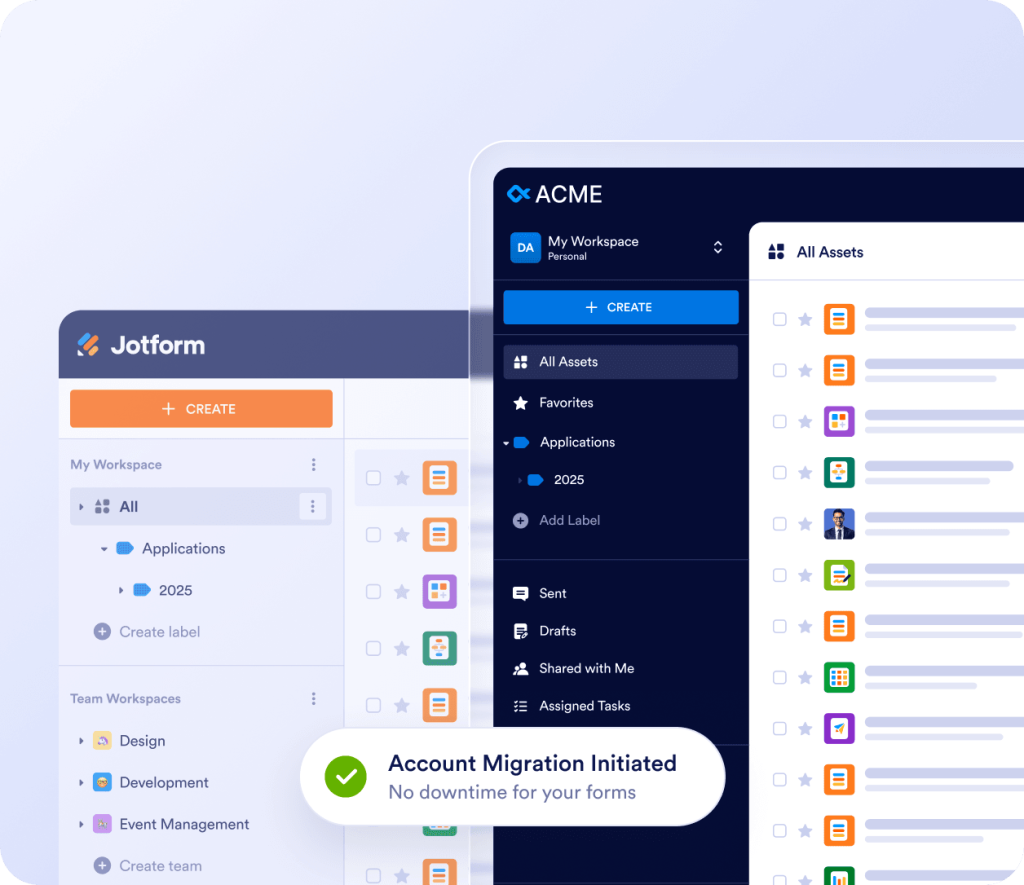
Siirron vaiheet
Start your migration
Enter the external account’s email address and select the destination Enterprise user in the Admin Console to send a migration invitation.
Review and schedule
Review the assets and data in your standard Jotform account, then accept the invitation. Migrate immediately or schedule a time that works for you.
Migrate automatically
Your assets and data are securely transferred to your Enterprise account through an automated process.
Access and collaborate
We’ll email you when the migration is complete. Find your migrated assets in the destination Enterprise account’s Workspace, ready to share with other licensed users.
How migration works
In most cases, admins start the migration in Admin Console, and the owner of the standard Jotform account gives consent from their own account. Your Account Manager can also submit the request for you.
 STEP 1
Send a migration invitation
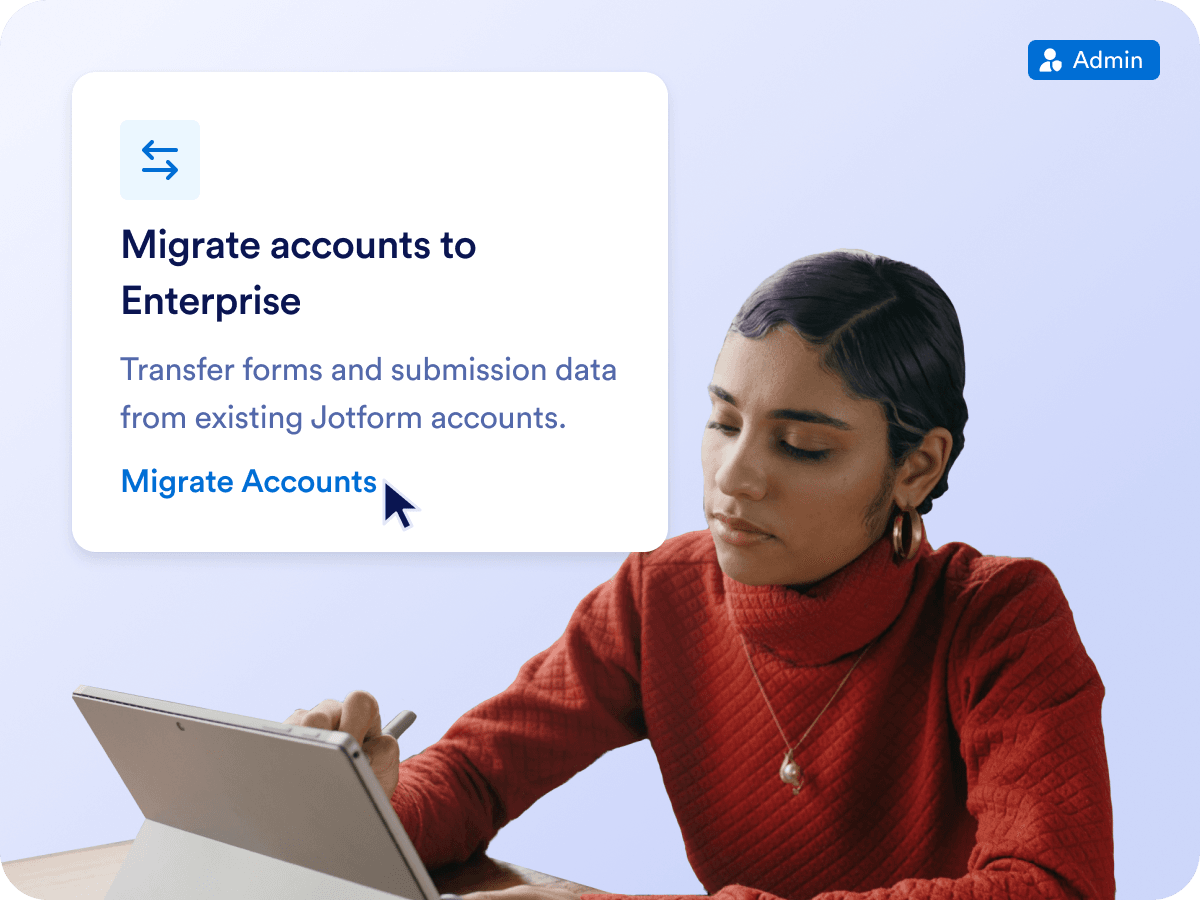
In Admin Console, click Migrate Accounts in Getting Started — or click Migrate Account on the Users page. Enter the email of the external Jotform account, then pick the Enterprise User or Team who'll receive its assets, or add a new one.
- Migrate your own standard account or a colleague’s
- Invite multiple accounts and track each one separately
 STEP 2
The account owner gives consent
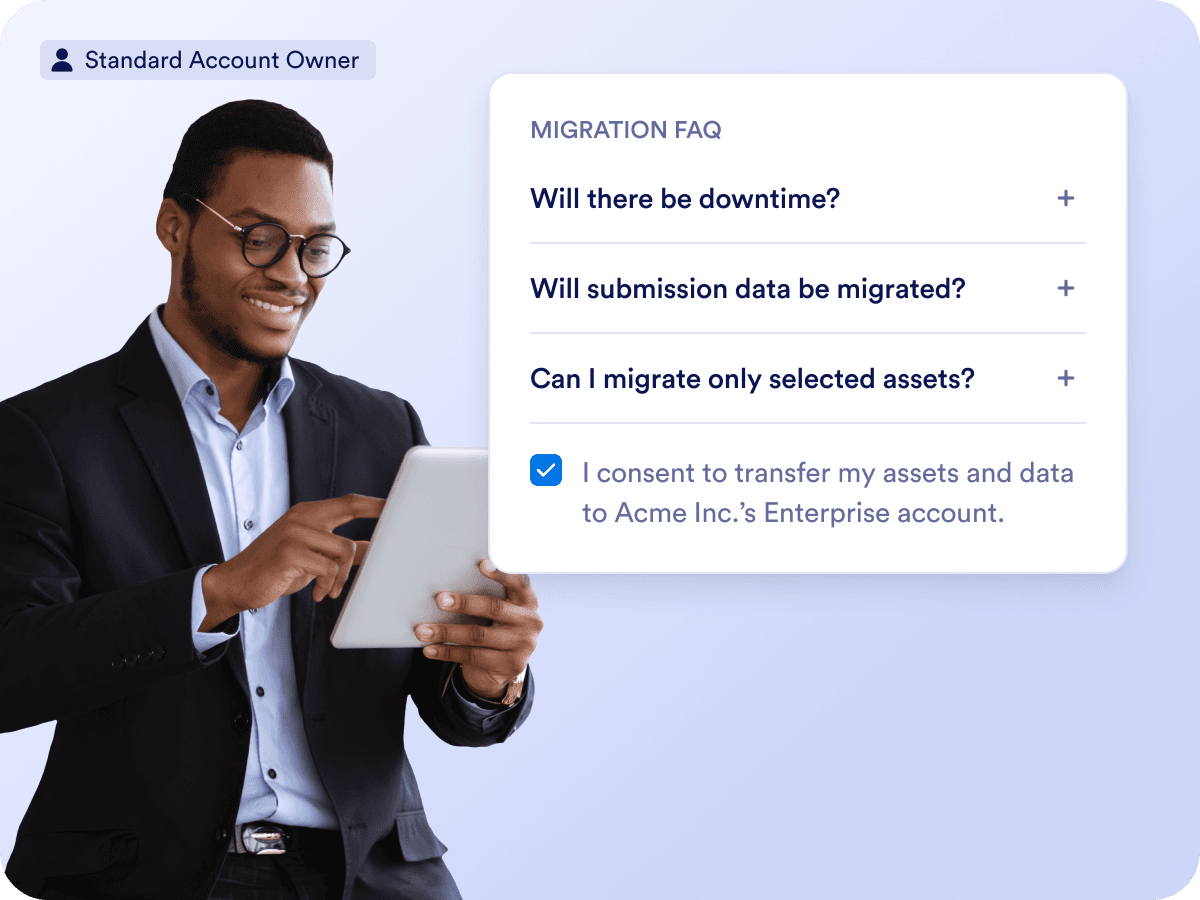
The owner of the standard Jotform account opens the Migration module in their account, reviews a short FAQ, and gives consent to transfer their data. Migration includes everything in the account, so delete anything you don’t want to bring over first.
- Each standard account can be migrated only once
- Nothing moves until the owner gives consent
 STEP 3
Migrate now or schedule it
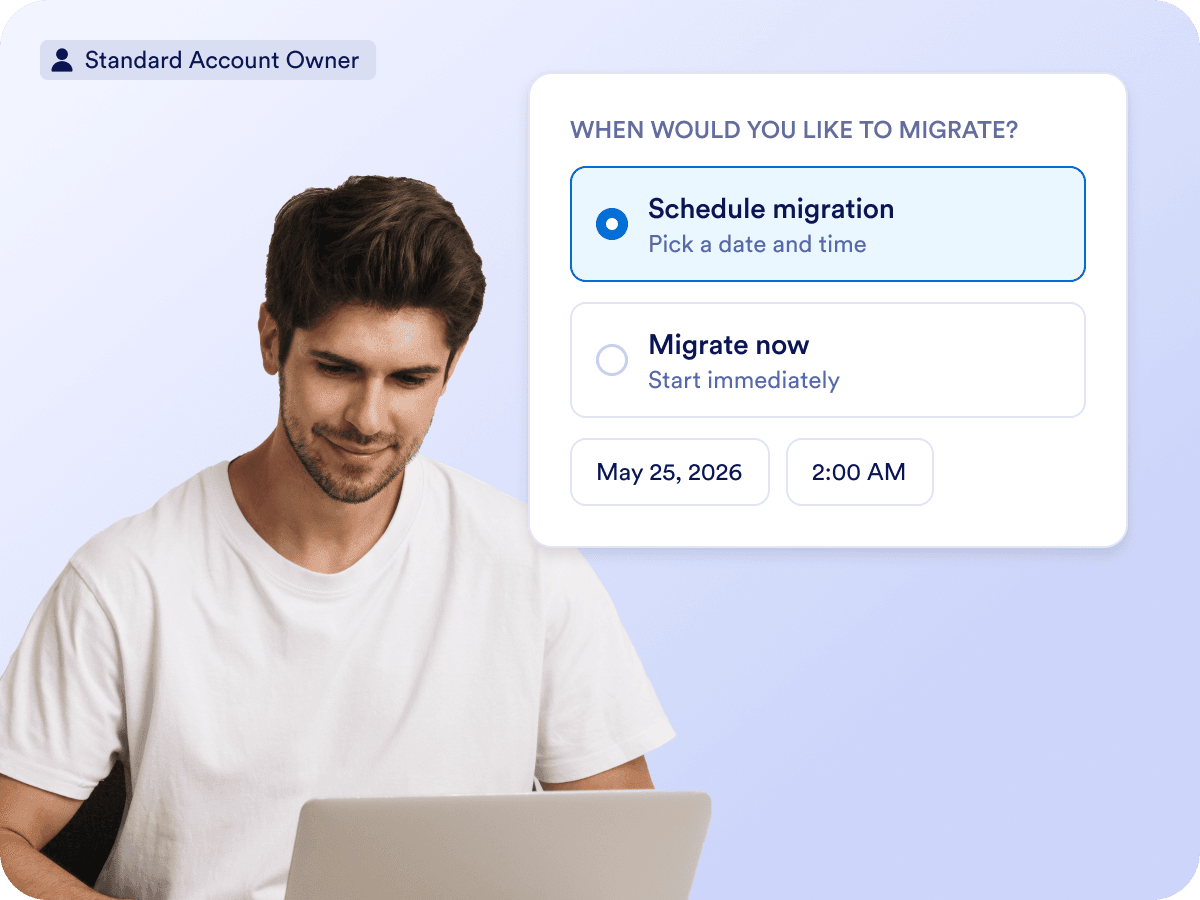
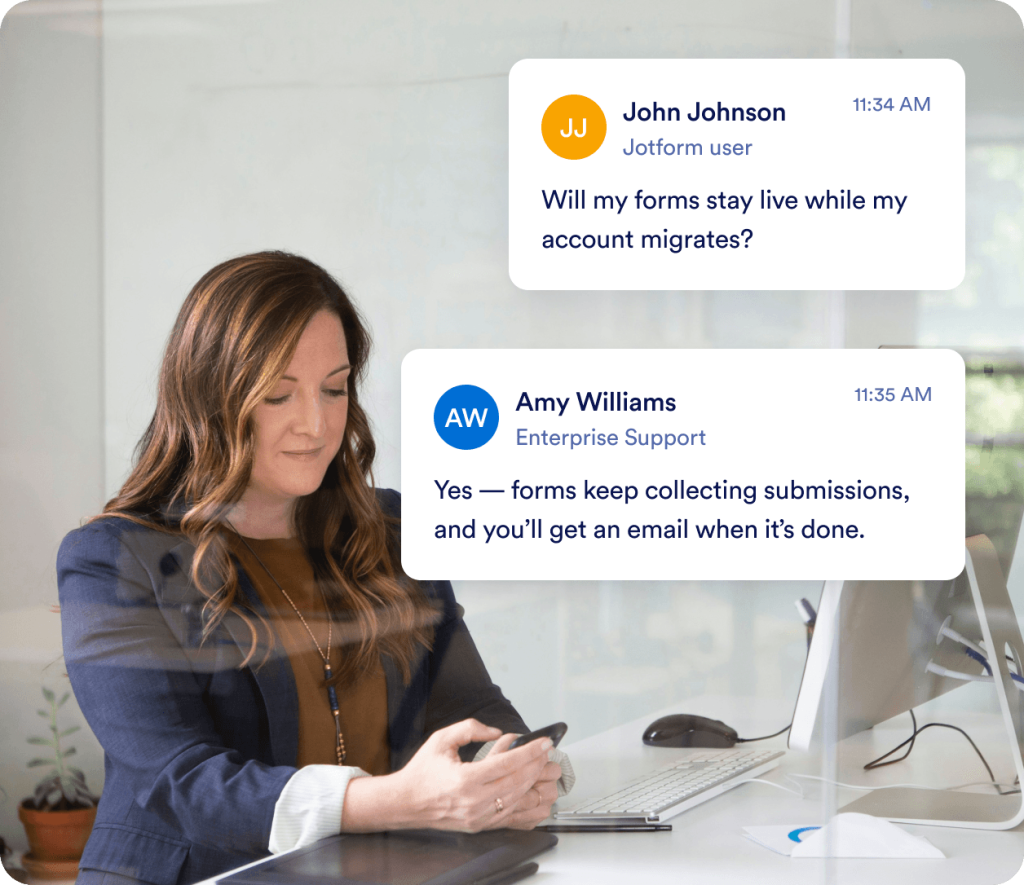
Choose Migrate Now to start transferring immediately, or Schedule Migration to pick a date and time that works for your team. Either way, forms stay live and keep collecting submissions.
- Most migrations complete almost instantly
- No downtime for respondents
 STEP 4
Track progress and start collaborating
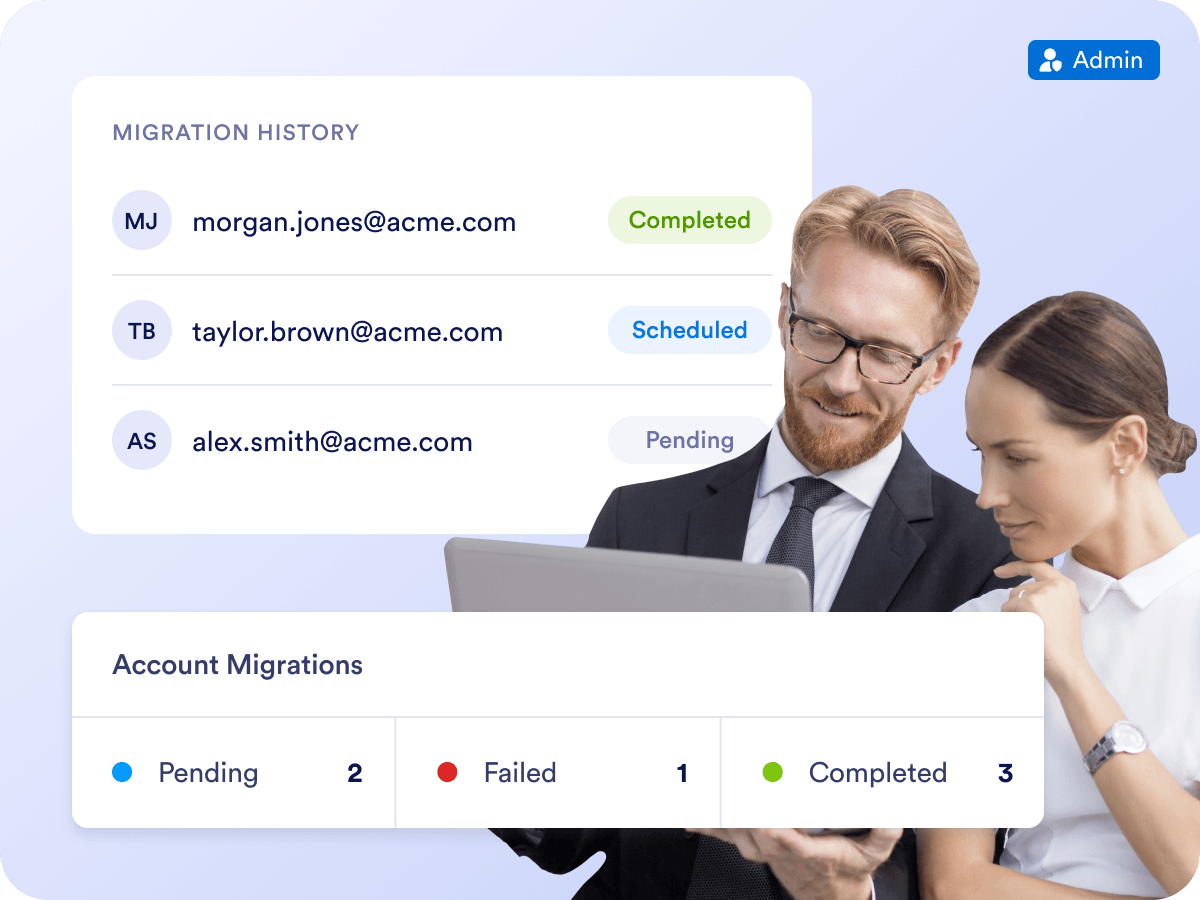
Follow every request in Migration History — Pending, Scheduled, Completed, Failed, or Declined — and resend or revoke invitations anytime. When the migration is complete, migrated assets appear in the destination Workspace or Team Workspace, labeled “migrated” and ready to share.
- Filter requests by status
- Migrated assets are ready to share with licensed users
Ei käyttökatkoa
Self-service migration keeps your forms live from start to finish. Maintain full control over the source and destination while ensuring a smooth transition, uninterrupted operations, and the integrity of your form-based processes.


Pidä tietosi turvassa
Jotform Enterprise on sitoutunut varmistamaan, että yrityksesi tiedot pysyvät turvassa. Tietojasi säilytetään paikallisilla palvelimilla, joiden suojana on vankka tietoturvainfrastruktuuri. Tarjoamme ylpeänä ratkaisuja, jotka noudattavat tiukkoja vaatimustenmukaisuusstandardeja, kuten GDPR, SOC 2, HIPAA, FERPA ja muita, tarjoten kattavan suojan arkaluontoisille tiedoillesi.
Miksi asiakkaamme rakastavat Jotform Enterprisea
Migration FAQs
Can I migrate my existing assets and data from my standard Jotform account?
Yes. Migrating your existing forms and data is included in the server setup process.
Admins can initiate a migration from the Admin Console in their organization's Jotform Enterprise account. The standard Jotform account owner will receive a request to authorize the data transfer and can choose to start the migration immediately or schedule it for later.
Alternatively, contact your Account Manager or submit a migration request to the Support team.
Will there be downtime during migration?
No. Migrations involve no downtime, and most are completed instantly. Standard Jotform account owner can schedule migration for a date and time that works the best.
Will submission data be migrated as well?
Yes, submission data will be migrated as well. Once migration is complete, the submission data can be accessed in the Enterprise account. There are some exceptions, such as encrypted forms, draft submissions, and incomplete workflows, so make sure to review those as well.
Can I migrate only selected assets?
No. Migration includes all assets and submission data from your standard Jotform account. If there are any items you do not want to migrate, you must delete them before the migration begins. Each standard Jotform account can be migrated only once.
Will form URLs remain the same?
After migration, all form URLs will be updated to Enterprise URLs. Existing Jotform URLs will continue to work, allowing respondents to access forms using either URL. For example, jotform.com/formID will be updated to {subdomain}.jotform.com/formID. We recommend updating all links to the new Enterprise URL as time permits.
iFrame and JavaScript embeds will automatically redirect to the new Enterprise URLs.
Source code embeds will not redirect automatically. The embedded source code must be updated to use the forms in the Enterprise account.
API URLs will be updated automatically. API URLs will change from https://api.jotform.com to https://{subdomain}.jotform.com/API (with API in all caps).
What happens to migrated assets?
Migrated assets will be disabled in the standard Jotform account’s Workspace. Migrated assets can be viewed or cloned, but can not be edited in their original Jotform Standard account.
After migration, migrated assets are listed in target Enterprise account’s Workspace or target Team Workspace, labelled as “migrated”. Enterprise account owners can share the form with other licensed users, add it to a Team, assign it a Label, or transfer ownership on a non-HIPAA server.
Can encrypted forms be migrated?
Encryption must be disabled before a form can be migrated. Existing encrypted submissions will remain encrypted and can still be accessed using the current access code. After migration, encryption can be re-enabled in the non-HIPAA Enterprise account using the same encryption key
Will I need to reconfigure my integrations again after migration?
In most cases, no. Your integration settings will also be migrated. However, the following integrations require additional steps:
If migrated assets have Dropbox or OneDrive integration, sign back into your connected account in the form’s Settings.
If migrated assets have Zapier or Power Automate integration, replace the trigger and the variables in workflow.
Will form assignees and assignment history migrate to the Enterprise account?
No, form assignees and their assignment history will not migrate over to the Enterprise Account. Form assignees can be re-invited to Enterprise Account once migration is complete. It’s recommended that you inform your assignees that new invites will go out, and they’ll need to create a new login account on your Enterprise account. The process for re-inviting users is the same, and you can learn more about that here.
What are the migration exceptions?
AI Agent phone numbers and linked phone numbers will be automatically and permanently revoked during migration. New phone numbers must be assigned after migration.
Website Widgets will remain in the standard Jotform account and won’t migrate over.
Encryption must be disabled before encrypted forms can be migrated.
Draft submissions (saved submissions to be completed later) will not migrate.
Workflow submissions in progress will not migrate.
What happens to standard Jotform accounts?
You can continue using the standard Jotform account, but any assets that have been migrated can't be edited in this account.
If you prefer to downgrade your Standard Jotform account, we’ll downgrade your standard Jotform account so that you aren’t charged for it going forward. Any prepaid but unused amount as of the date of the migration will be refunded to the credit card you have on file with Jotform.
Will HIPAA forms be migrated?
If your Standard Jotform account is HIPAA-protected, the migration can only be processed by submitting a support ticket or by contacting your Account Manager. Once the migration request is received, HIPAA forms will automatically be migrated, and you won’t need to take any additional action.
Can I request migration to a HIPAA-enabled Enterprise account?
Yes, migration to a HIPAA-enabled Enterprise account must be requested by submitting a support ticket or by contacting your Account Manager.
Kuinka lähetän siirtopyynnön?
You can request migration after your Enterprise server is set up by submitting a ticket to our Customer Success team. Please include the following information with your request:
Jotform Standard -tilisi käyttäjätunnus tai sähköpostiosoite, joka siirretään.
Käyttäjätunnus tai sähköpostiosoite sille tilille Enterprise-palvelimella, jolle lomakkeet siirretään.
Whether you want to downgrade your Jotform Standard account afterward