

Steps to create a Google Form on iPhone
- Open your mobile browser and go to Google Forms.
- Sign in to your Google Account.
- Tap Blank form to start from scratch, or choose a template from the template gallery.
- Enter a title and optional description for your form.
- Tap the first question to edit it, then enter your question and select the question type from the dropdown menu.
If you’re looking to create a Google Form quickly and efficiently using your iPhone or iPad, you’re in the right place. This guide will walk you through the straightforward steps to set up your form, customize it, and share it with respondents—all from the palm of your hand. Let’s dive into how to make a Google form on iPhone and iPad and utilize your device’s capabilities to facilitate data collection and feedback on the go.


How to create a Google Form on iPhone and iPad
Creating a Google Form on your iPhone or iPad is a straightforward process. Here’s how to do it for iPad:
- Open your browser and visit the Google Forms website at https://forms.google.com.
- If you’re not signed in to a Google account, you’ll be prompted to do so.
- Once signed in, you can start creating a new form.
- On the homepage, you’ll find the ‘Start a new form’ section.
- From here, you can select one from the template gallery to edit or create a new one by clicking on Blank Form.

- When you open a form in the editor, you can click on any question to edit it. The question’s settings will appear on the bottom of the screen, where you can make changes.

To create a Google Form on iPhone,
- Open your browser and visit the Google Forms website at https://forms.google.com.
- If you’re signed into a Google account, you can proceed without any prompts.
- A new blank form will automatically appear.
- Similar to iPad, just tap on any question to edit it. The question settings will then appear at the bottom of the screen for making changes.

Adding questions and response types
Google Forms provides a variety of question types to cater to different data collection needs. These include:
- Short answer
- Paragraph
- Multiple choice
- Checkboxes
- Dropdown
- File upload
- Linear scale
- Rating
- Multiple choice grid
- Checkbox grid
- Date
- Time


On an iPhone or iPad, adding a new question to your Google Form is quite straightforward. Tap the ‘+’ button and a new question will be added to your form. Then, select the desired question type from the provided list. Whether you’re creating a quiz with multiple-choice questions or a survey with rating scale questions, Google Forms has got you covered.


Remember that Google Forms operates on a cloud-based system, implying that all your forms get auto-saved to your Google Drive, alongside your Google Docs. This gives you the freedom to switch between your iPhone, iPad, or your computer, ensuring you can work on your forms whenever and wherever you want. To create Google Forms, simply access the platform through your Google account and use Google Forms as needed.
How to customize your Google Form on iPhone and iPad
After creating a basic form, the next step is to customize it to suit your needs. Let’s explore these options in more detail.
Incorporating images and videos
Adding images and videos into your Google Form can enhance its engagement factor and visual appeal. It can also provide additional context to your questions, ensuring potential respondents understand them better.
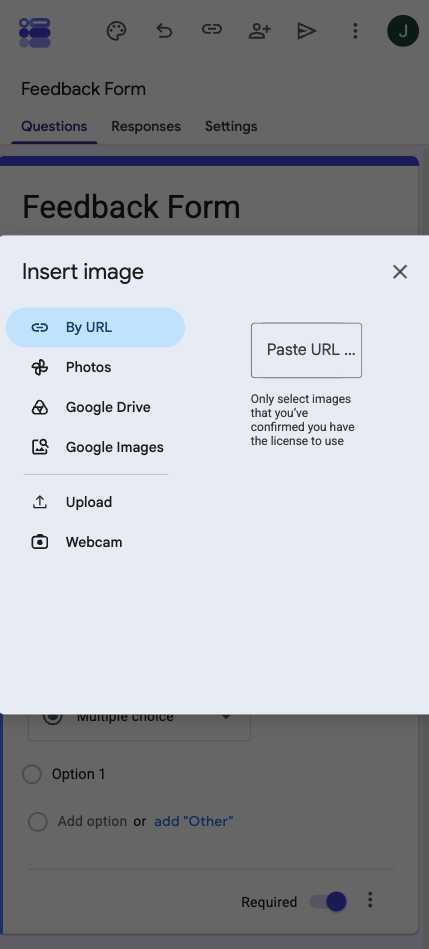
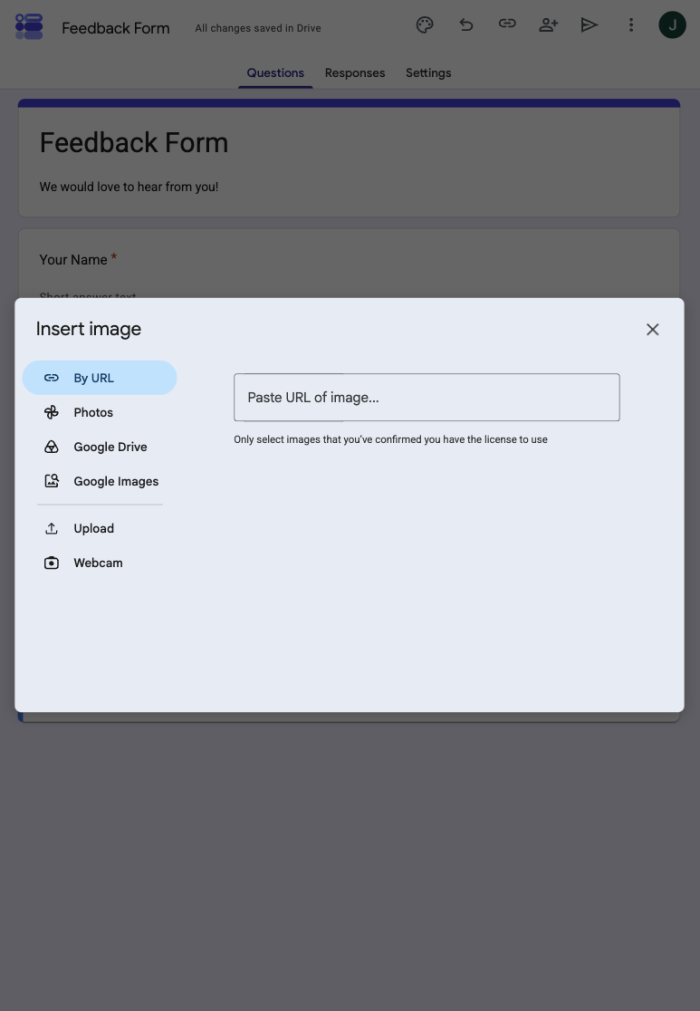
To incorporate an image into your form, click on the image icon. This will allow you to upload an image from your photo library, take a new photo, use a URL, upload from Google Drive or Google Images.


Pro Tip
This feature is particularly useful for creating quizzes where you want to ask questions based on a video clip.
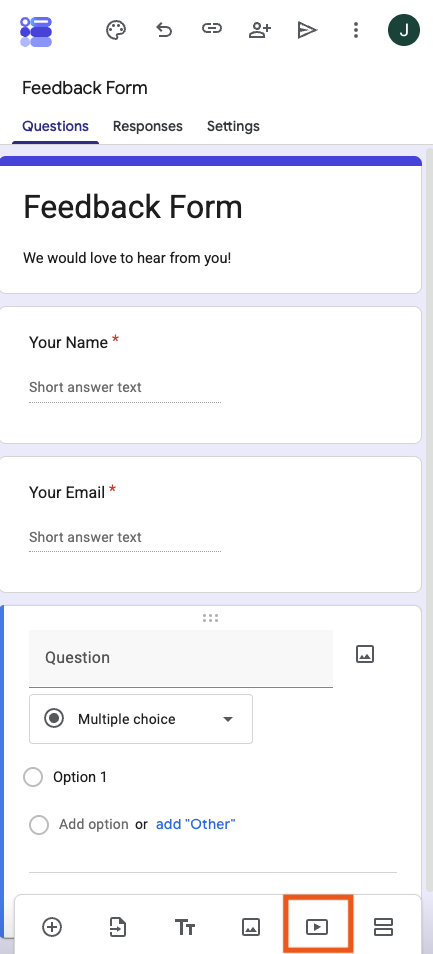
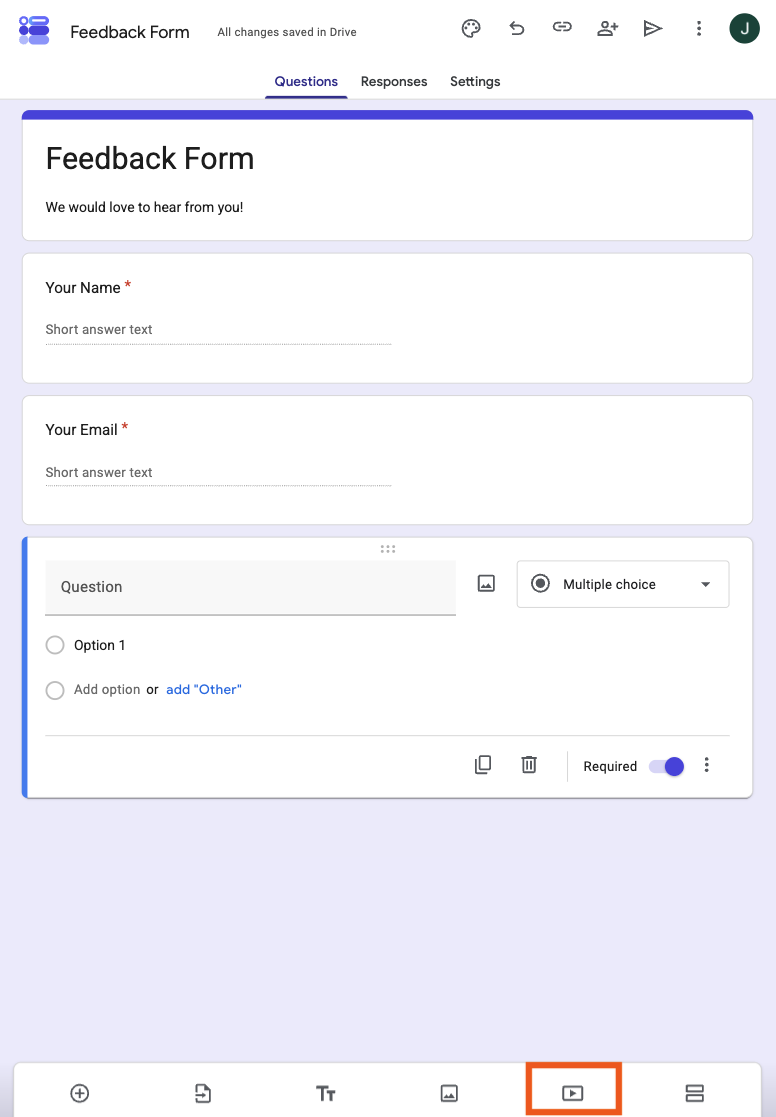
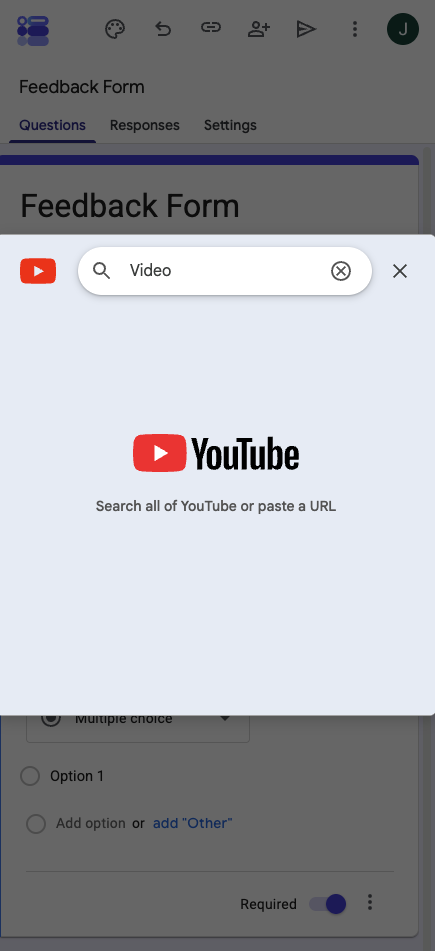
To insert a video, tap the video icon and paste a YouTube video URL or search videos on YouTube by the search bar at the top.

Customizing your form’s appearance
The visual appeal of your Google Form holds significant importance in attracting your respondents.
You can customize your form in the following ways:
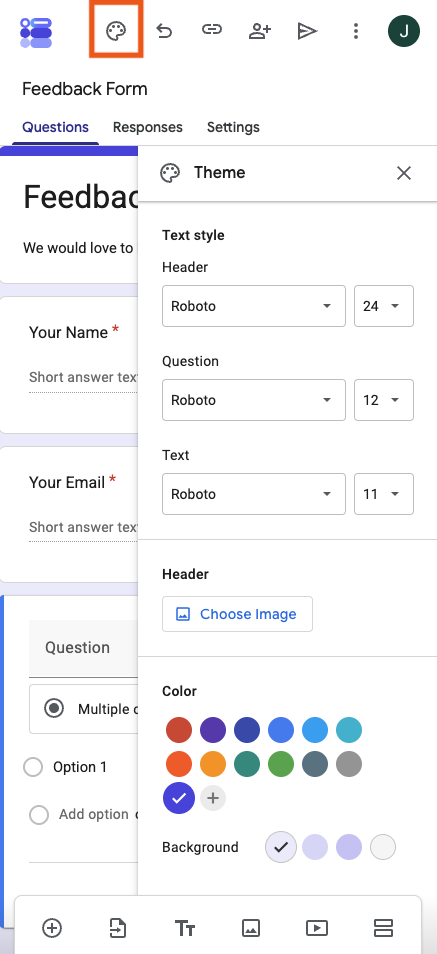
- Create a personalized theme by choosing your own color scheme and font style via the palette icon
- Select from various themes with preset colors and fonts
- Upload an image by clicking on ‘Choose Image’ for the Header
- Adjust the background color to match your form’s purpose or branding.

How to add collaborators to your Google Form on iPhone and iPad
Adding collaborators and setting editing permissions is simple on an iPhone or iPad.
To add collaborators, follow these steps:
- Open the form you want to share in Google Forms.
- Tap Share in the top-right corner.
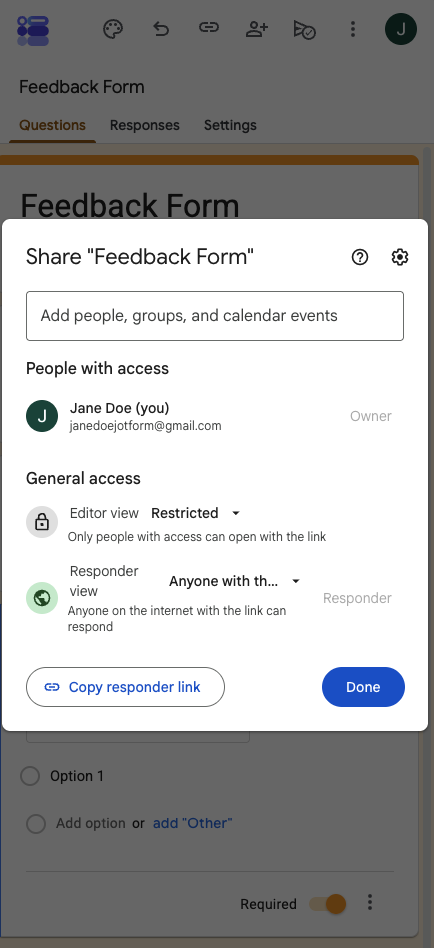

- Under People with access, enter the names, email addresses, or Google Groups you want to invite.
- Use the dropdown next to each person or group and select Editor.
- If your form is already published, add an optional message and choose whether to notify the collaborators by email.
- Tap Share to give the collaborators editing access.
How to share your Google Forms on iPhone and iPad
Before sharing a form with respondents, you need to publish it.
To publish and share your form, follow these steps:
- Open your form and tap Publish in the top-right corner.
- Tap Manage to choose who can respond to the form. This brings up the same window as the Share option.
- Under General access, select the audience for your form. For example, choose Anyone with the link if you want to let anyone with the form link respond.


- Tap Done, then tap Publish.
- To copy the respondent link, tap Published and select Copy responder link. You can then paste the link into an email, message, or social media post.

Pro Tip
The previous Facebook and X sharing icons are no longer part of Google Forms’ sharing interface. To share on social media, copy the responder link and paste it into your post.
How to view Google Forms responses on iPhone and iPad
Once your form is published and collecting submissions, you can review responses from the form editor.
- Navigate to the Google Forms website in your mobile browser and open the form.
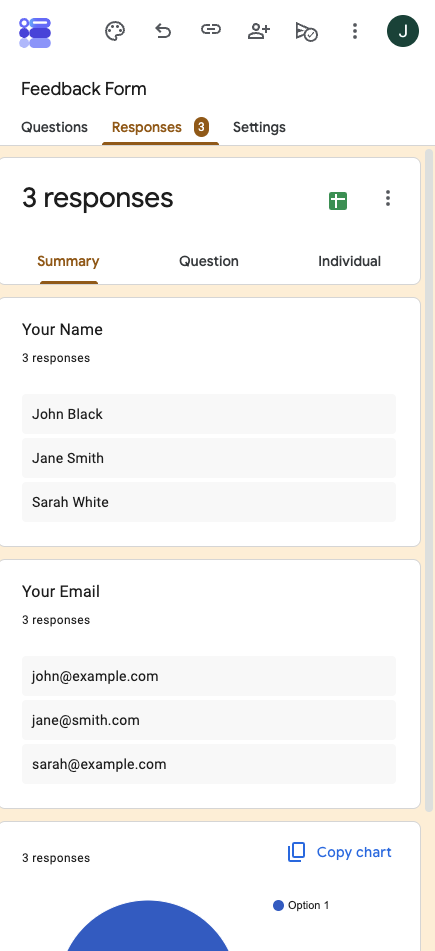
- Tap the Responses tab at the top of the form.
- Select Summary to view an overview of the responses, including charts and response totals.

- Select Individual to review one submission at a time. Use the navigation arrows to move between responses.
- To download your responses, tap the More menu in the Responses section and select Download responses (.csv).
- To view responses in a spreadsheet, tap the Link to Sheets icon in the Responses section.

These steps reflect Google’s current Share, Publish, and Responses interface. Google’s collaborator-sharing guide and publishing and responder-sharing guide confirm the updated flow.
Jotform: A powerful alternative to Google Forms
While Google Forms provides a plethora of features for formulating and managing forms on mobile devices, considering alternatives like Jotform could also prove beneficial. Jotform is a powerful tool that provides a user-friendly mobile interface and additional features.
Jotform offers over 20,000+ form templates, plenty of form field types and widgets, and 100+ integrations. This allows the creation of advanced online forms capable of collecting payments, accepting donations, and capturing signatures, among others. These features make Jotform a highly versatile and powerful alternative to Google Forms.
Jotform Mobile Forms allows you to create, edit, and share forms directly from your iPhone or iPad. It also offers specific features like offline form creation and data collection. This can be particularly useful in situations where you don’t have access to an internet connection.
Additional distinctive features of Jotform include:
These features can provide you with more flexibility and functionality compared to Google Forms, making Jotform a compelling alternative.
Frequently Asked Questions
How do you create a Google Form on mobile?
To create a Google Form on your mobile device, visit forms.google.com, where a new form will automatically open from scratch. You can then add questions and customize its appearance. After making edits, you can find and edit the form in your Google Drive app.
If you use Google Form mobile to collect responses, test the form on your phone before sharing it. This can help you catch formatting issues and ensure respondents have a smooth experience on smaller screens.
Does Google have an iOS app for forms?
Google Forms does not have a dedicated iOS app, but you can access and edit forms using Safari or other mobile browsers through the Google Forms website. This way, you can still manage your forms on your iOS device.






















Send Comment: