

How to create a dropdown list in Google Forms
- Open a blank form or a template.
- Click Untitled Question and type in the question.
- In the Question Type box at the right, select Dropdown.
- Type your answer choices on the Option lines.
- Preview the form by clicking the eye icon at the top.
- Share it with others by clicking Publish at the top right.
Creating a form where one or more questions have lots of answer options? Listing all of them on the face of your form takes up space and creates clutter, which can be confusing (and annoying) for respondents. Dropdown menus are a better solution. Similar to multiple-choice questions, they hide long lists until they are clicked, allowing you to offer many answer options and still keep your form layout clean and simple.
In this article, we’ll show you how to create a dropdown list in Google Forms. But be aware that this tool has its limits! In the following sections, you’ll find out what they are and what you can use as an alternative if the dropdown in Google Forms doesn’t quite cut it.


What is the dropdown question type?
A dropdown field is essentially a collapsible menu; the list of choices remains hidden until a user clicks on it. The benefits of a dropdown are twofold: Hiding large answer sets makes your form more aesthetically pleasing, and it enhances the user experience by preventing “scroll fatigue” on mobile devices.
Note that Google Forms limits respondents to choosing one item from a dropdown list in Google Forms. This could be problematic in certain cases, such as when you’re looking for more in-depth information about preferences or asking for date ranges.
If you want (or need) to give respondents the option to choose multiple answers from a dropdown, consider using Jotform for data collection instead. It offers a standard, single-answer dropdown menu as well as advanced options, such as multiple selections and nested, multitiered dropdowns.


How to create a dropdown list in Google Forms
Follow the instructions that follow to create your first dropdown list in Google Forms. (For helpful directions on how to do other types of tasks in this tool, see our article, “How to use Google Forms.”)
- In Google Forms, click Blank form at the top left or click on one of the options in the template gallery.

- Add a form title and description. Click on Untitled Question and type in the question that will introduce the dropdown menu. Then click the question type box at the right and select Dropdown.

- Type each of your answer choices on the Option lines. Toggle the Required button on.
If the list of options is already typed out in a spreadsheet, you can expedite this step by simply copying the full list of items from there and pasting it directly into “Option 1.” This will instantly populate the entire dropdown list.

Need to reorder the options? Place your cursor to the left of any option until six dots appear, then drag it to a new position.

- Continue typing in additional questions as needed. When you’re finished, preview the form by clicking the eye icon at the top. Revise as needed.

- When the form is complete, share it with others by clicking Publish at the top right.
Click Manage to determine who can access the form. You can then either copy the responder link and send it to select recipients or copy the embed code to embed the form on your website.

How to add conditional logic to your dropdown
If you’d like to ask further questions based on a respondent’s answer to a previous question, you can apply conditional logic to a Google Forms dropdown. For example, on this form, you may want to ask those who choose a pickleball outing to indicate their skill level or whether they need a lesson.
To do this, first you’ll have to create form sections for the follow-up questions. In the last question of the first section, click on the Add section icon (the two stacked rectangles) at the right.

Add a title for the next section and a description if needed, then click the Plus icon at the right for Add question. Type your follow-up question(s) here.

Go back to the dependent question (the one you’d like to follow up on) and click anywhere inside that box to make three dots appear at the bottom right next to the Required toggle button. Click those dots and then Go to section based on answer.

For each of the responses, use the dropdown menu on the right to provide directions. For example, if someone selects “Golf outing” and you have no follow-up questions, the next step would be form submission. If someone selects “Pickleball,” the next step would be “Continue to next section,” where respondents will indicate their skill level. Specify the correct section and continue doing this for the remainder of the responses.

Check that the form works properly by clicking the preview icon (the eye) at the top of the page.
Dropdown vs multiple choice: Which should you use?
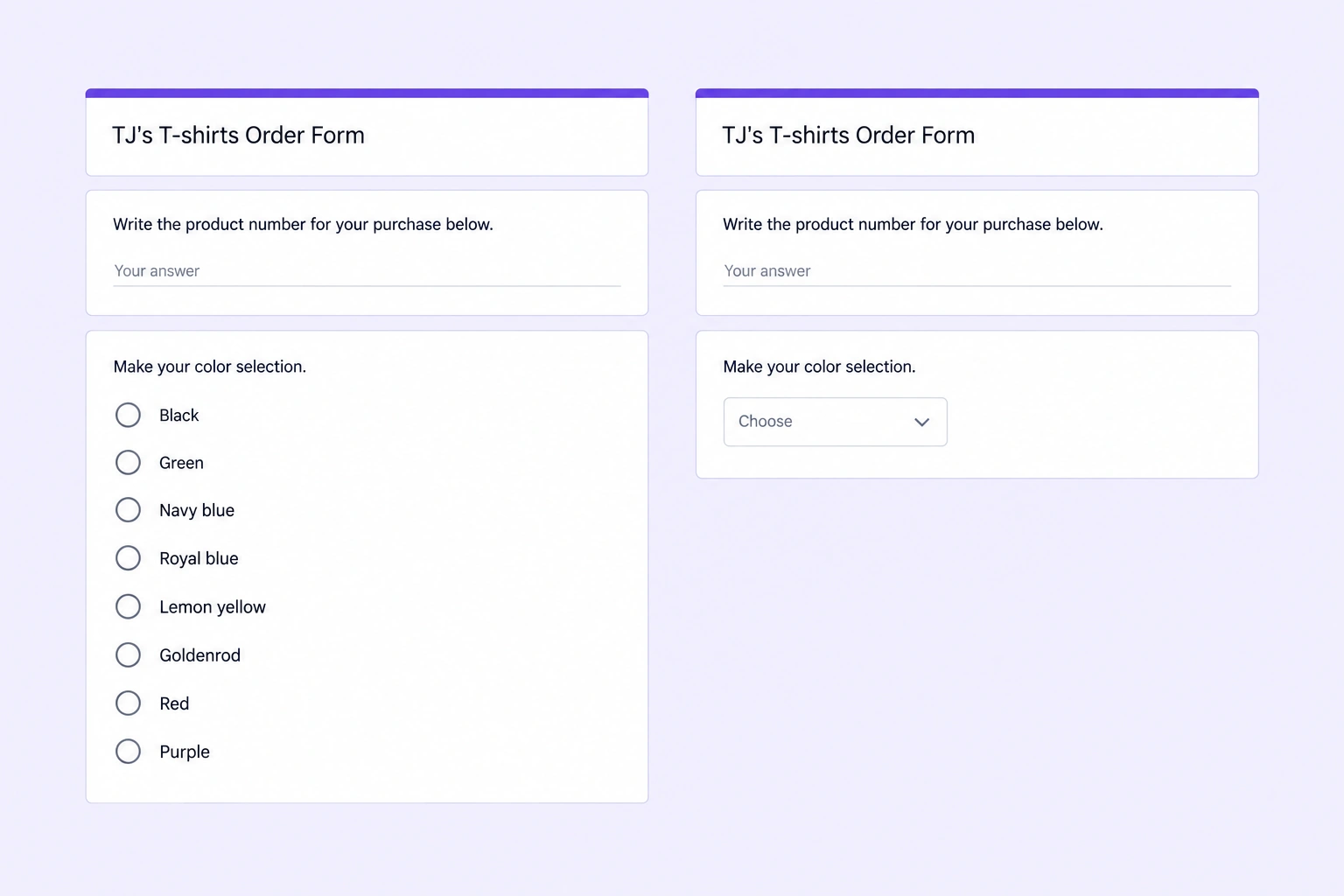
In Google Forms, dropdown vs multiple choice isn’t an issue as far as form creation because they’re both fairly simple to create. It’s more about presentation; which one will give your respondents a better experience? This is important because a bad experience could cause people to abandon the form, which gives you less data to work with.
You can see the difference in the provided screenshots. The one on the right uses a dropdown menu, making it cleaner and shorter. Dropdowns are a better choice, especially if you have more than one question with many answer options.
There’s no hard-and-fast rule that dictates when to use a dropdown vs multiple choice, but here’s a good rule of thumb:
- ✅ Use multiple choice for five or fewer options so respondents can see all choices at a glance without an extra click.
- ✅ Use a dropdown for six or more options to keep the form from looking intimidating.
Jotform offers both options but also goes one better: It provides hybrid widgets (like multiselect dropdowns) to give form builders the best of both worlds.
The limitations of Google Forms dropdowns
A simple dropdown in Google Forms is easy to build, but if you use them regularly or if they’re a crucial part of running your business, you’ll soon realize the limitations of this tool.
For one, you can’t offer respondents the option to check multiple boxes in a dropdown. That would prevent you from using it to ask customers to choose several preferred product features from a list, for example, or to identify multiple symptoms or allergies from a list.
Another limitation: You can’t easily manage multiple dropdown fields used across several forms. If you’re using the same dropdown list in more than one form, you need to make each change manually.
Last but not least, think of your users: They can’t filter the responses or quickly search through a long list. (You may see this functionality while previewing your form, but respondents can’t do the same.) Google Forms’s lack of a searchable dropdown degrades the overall form-filling experience.
Need smarter dropdown menus? Switch to Jotform
If you’re a small business owner, project manager, teacher, or anyone else who uses forms for work regularly, you need the option to create smarter dropdown menus, and that means moving away from Google Forms. The best Google Forms alternative is Jotform, which is just as easy to use but has so much more to offer!
Jotform’s dropdown menus are more advanced than Google Forms’s because Jotform has the native ability to handle complex data lists. That means you can do more with your forms overall and specifically with dropdown menus by taking advantage of these features:
- Dynamic Dropdowns widget: In Jotform you can create dropdown menus that change based on respondents’ previous answers. That means less scrolling, less frustration, and faster completion times.
- Searchable dropdowns: Save your respondents time by creating searchable dropdowns. They can simply start typing, and Jotform’s autocomplete feature provides only the matching selections.
- Multiple selection dropdowns: Allow respondents to select more than one option from dropdown menus so you can get exactly the data you need.
- Reusable dropdown widget: Jotform has a specialized widget that connects a dropdown field to a Jotform table. One change to the table will update your dropdowns across multiple forms.
- Spreadsheet to Form widget: Give respondents the opportunity to fill out forms even faster with this widget, which links your form to an Excel spreadsheet. Once someone makes their dropdown selection, Jotform can autocomplete other form fields with the associated data. Google Forms has no way to populate a dropdown from a spreadsheet in Google Forms.
- More than 20,000 free form templates: Jotform’s vast library of 20,000-plus free form templates trounces Google Forms’s 17. You can find a template for nearly any use case, making the job quick and easy.
The use cases for form dropdowns are endless, and you need a form builder that supports all of them. Switch to Jotform and you’ll never again wonder, “Can I do that?” With Jotform, yes, you can!
Migrate your Google Forms to Jotform in 2 minutes
While a basic Google Forms dropdown looks good enough on the surface, behind the scenes it simply can’t support the needs of a business. Jotform has all the dropdown functionality you need for professional data intake — searchability, dynamic options, multiple selections — plus a range of other advanced form options that improve the experience for both you and your respondents.
Have you already created Google Forms? Migrate your Google Forms to Jotform with a single click, and you’ll be able to upgrade your form fields and use its conditional logic features instantly. Give it a try today!
This article is for teachers, project managers, and small business owners who are designing surveys or intake forms and need to manage long lists of options without making their forms look overwhelmingly long.























Send Comment: